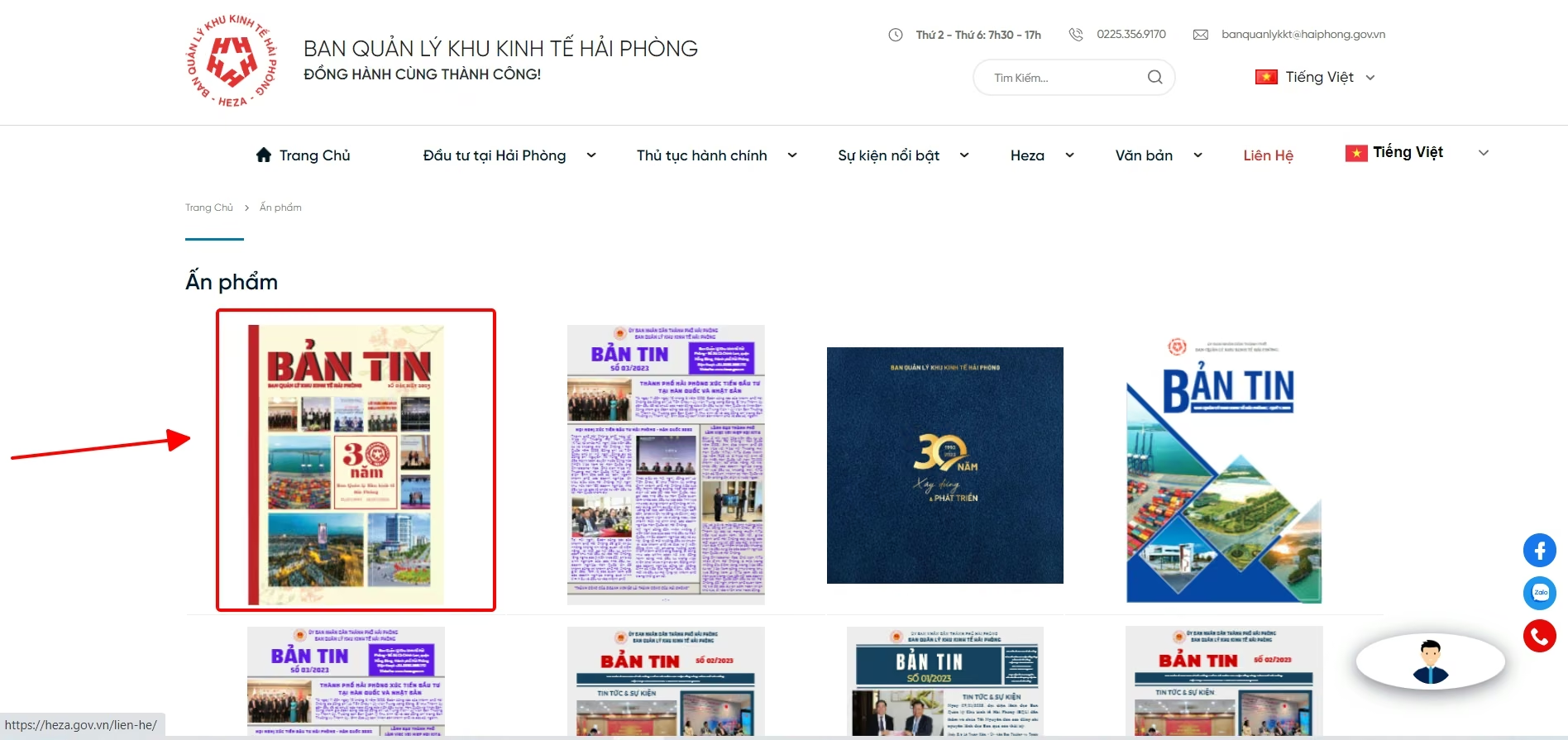
1. Publish a news article
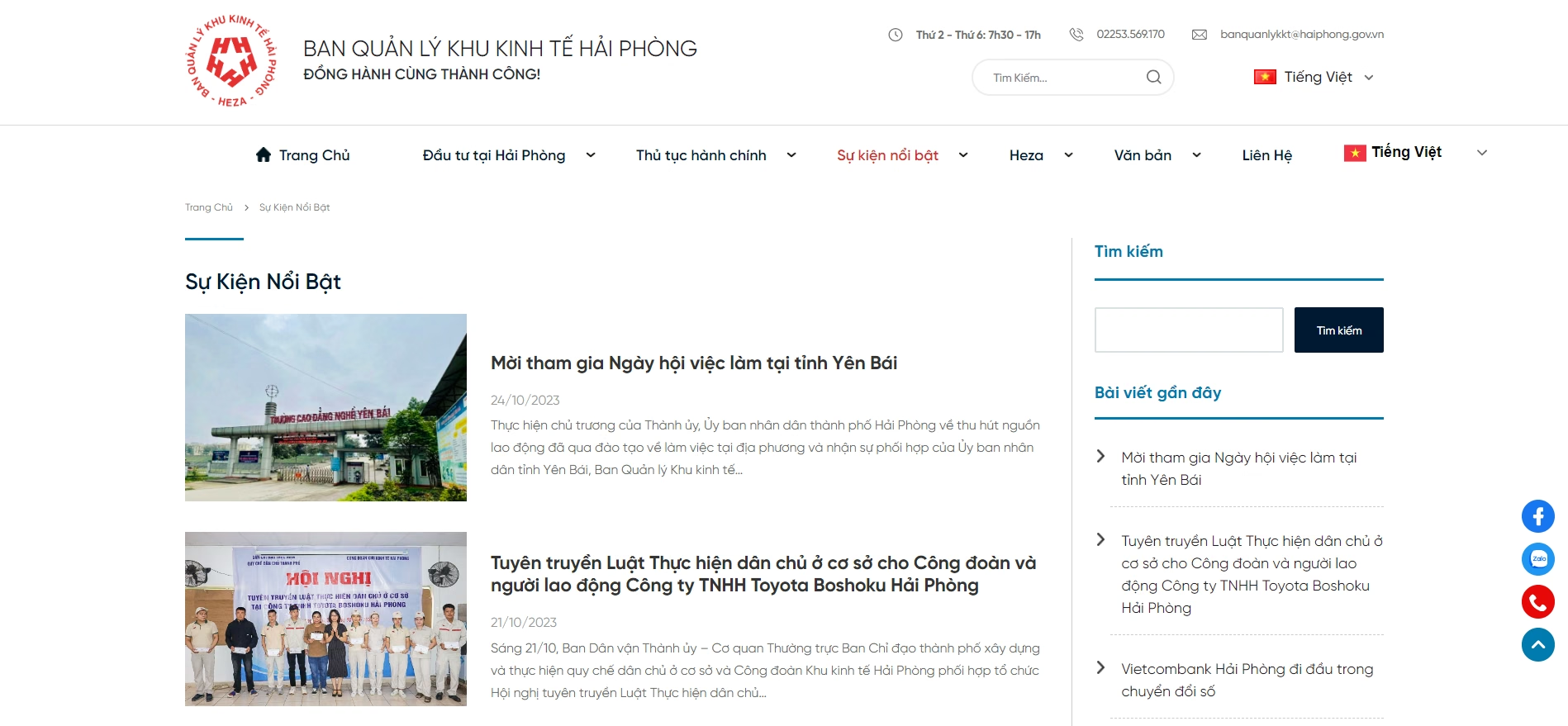
News page interface
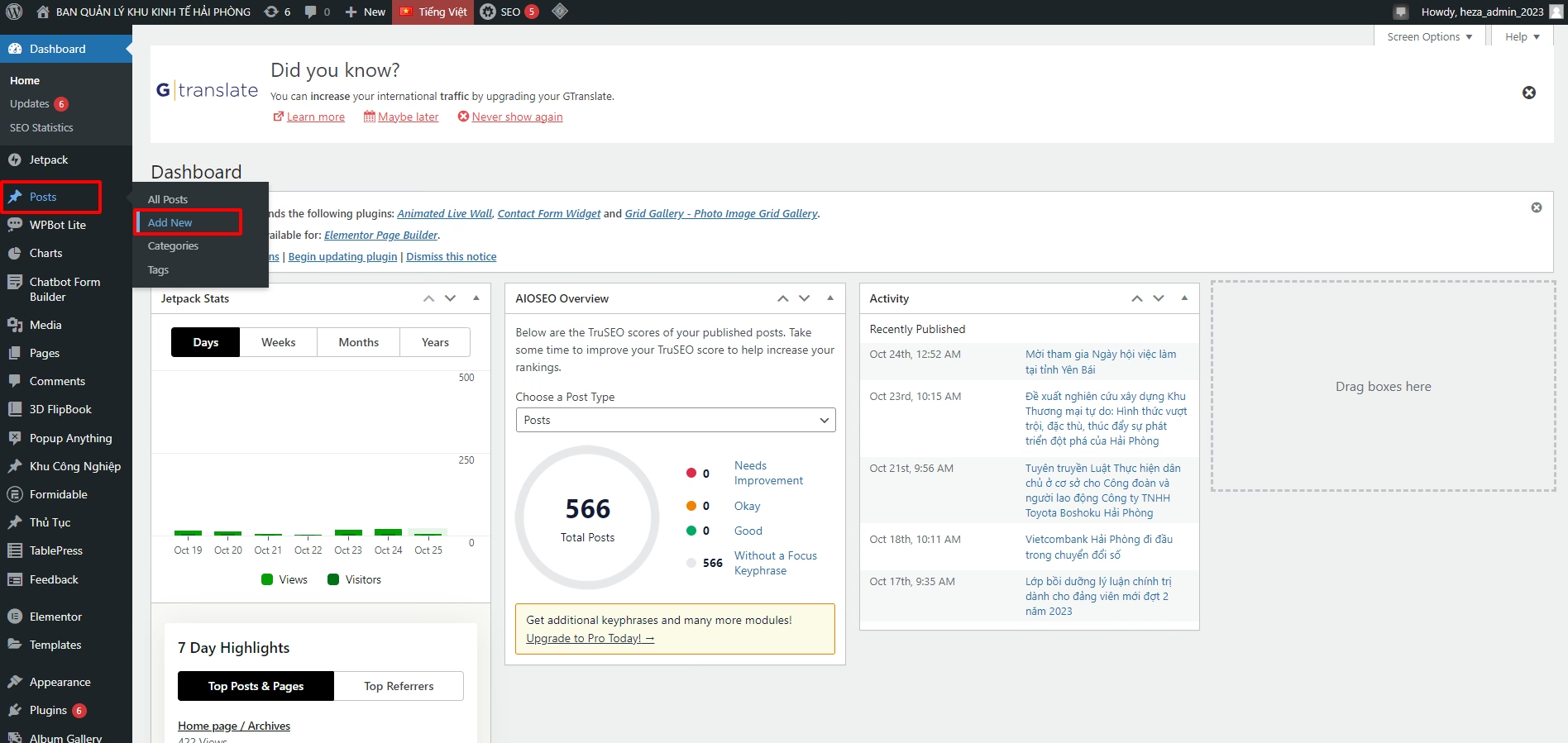
Step 1: In theAdmin Dashboard, point to in the left toolbarPosts,the submenu shown below, then clickAdd New
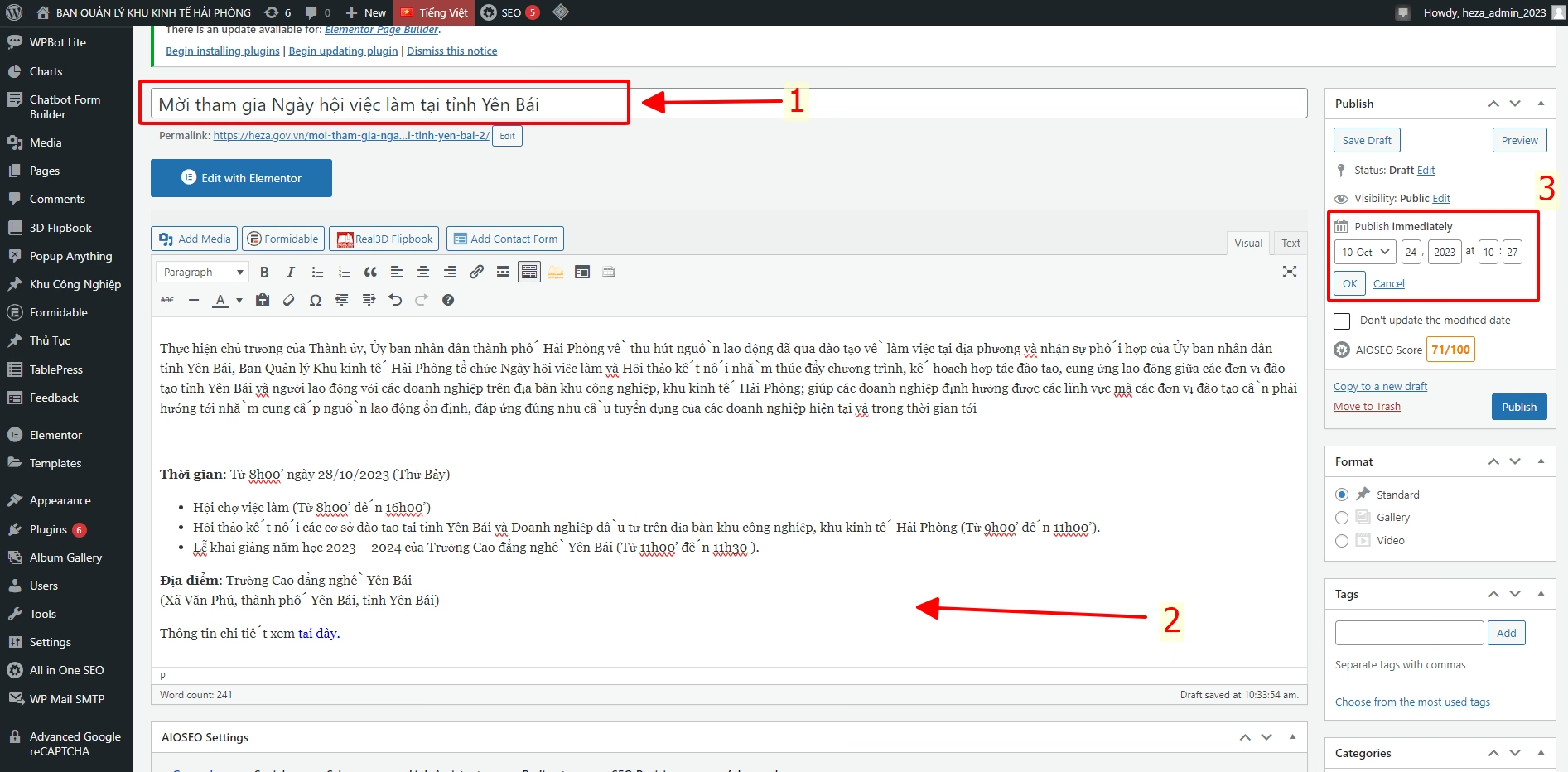
Step 2: The following screen appears. Create the article in the order shown below:
- (1) Enter the article title.
- (2) Enter the article content.
- (3) Publication date.
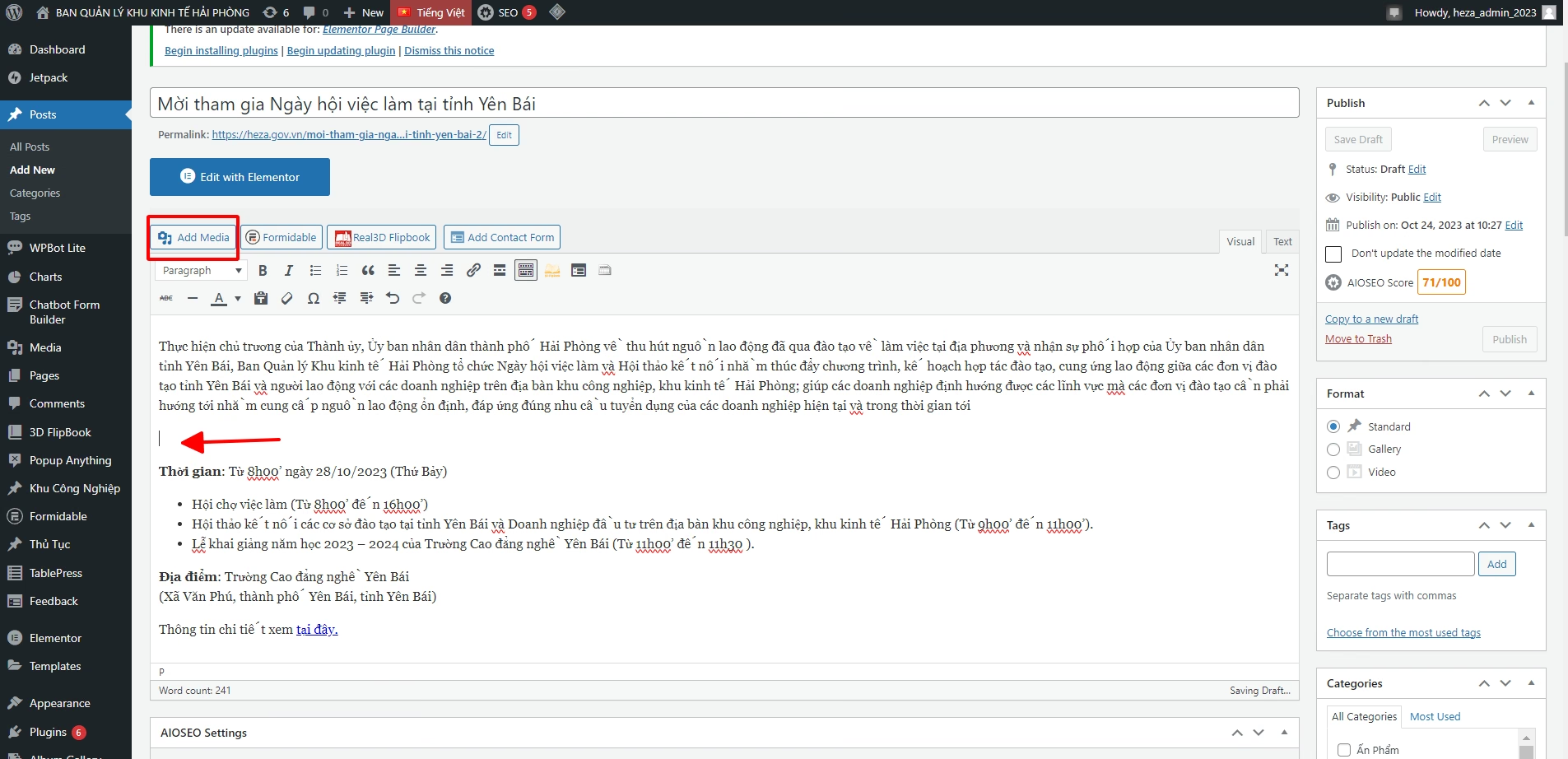
Next, to add an image to the article, follow these steps:
- Click the position where you want to place the image in the article
- Then click Add Media
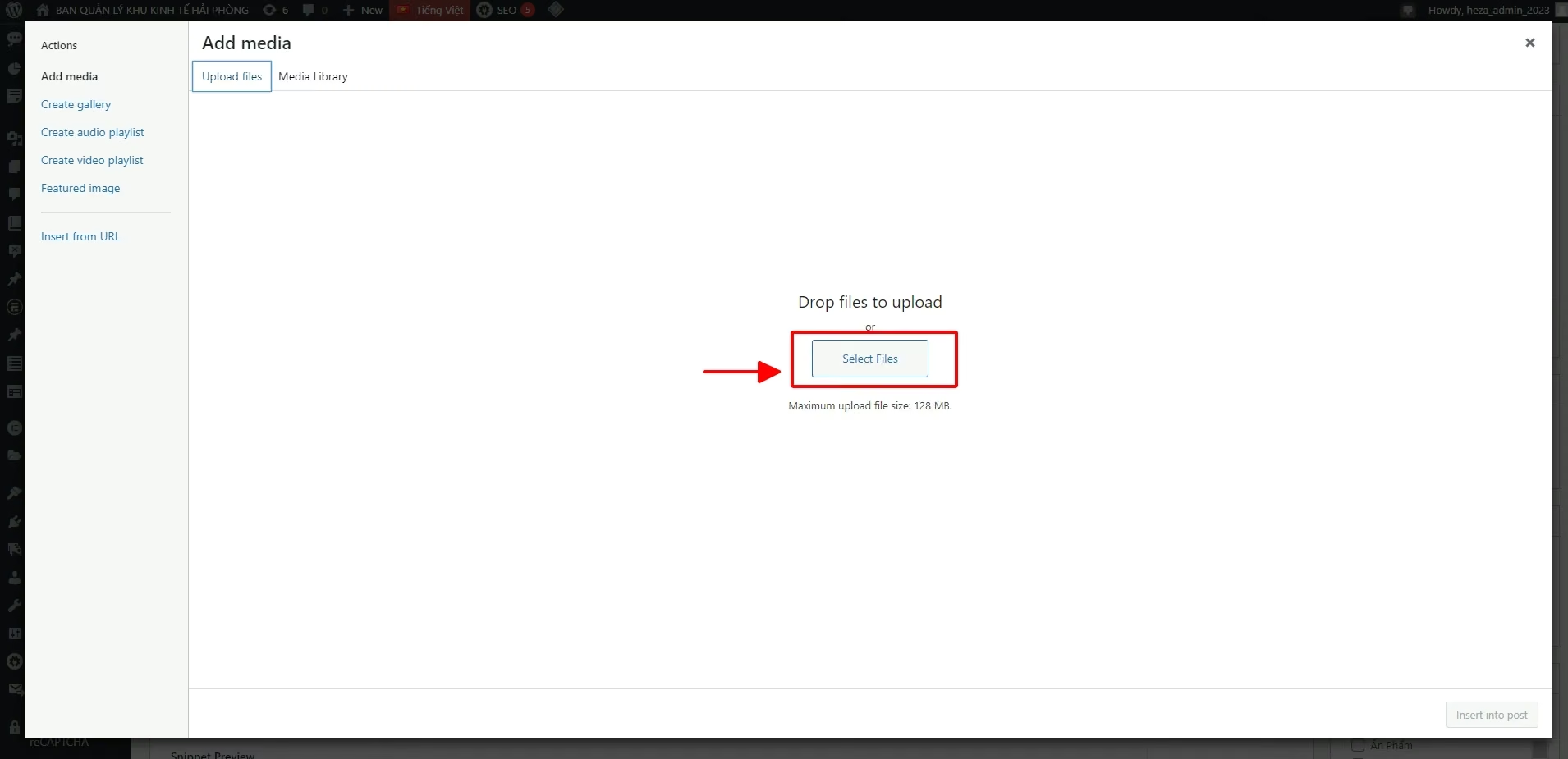
- The media upload interface appears as follows; click Select Files
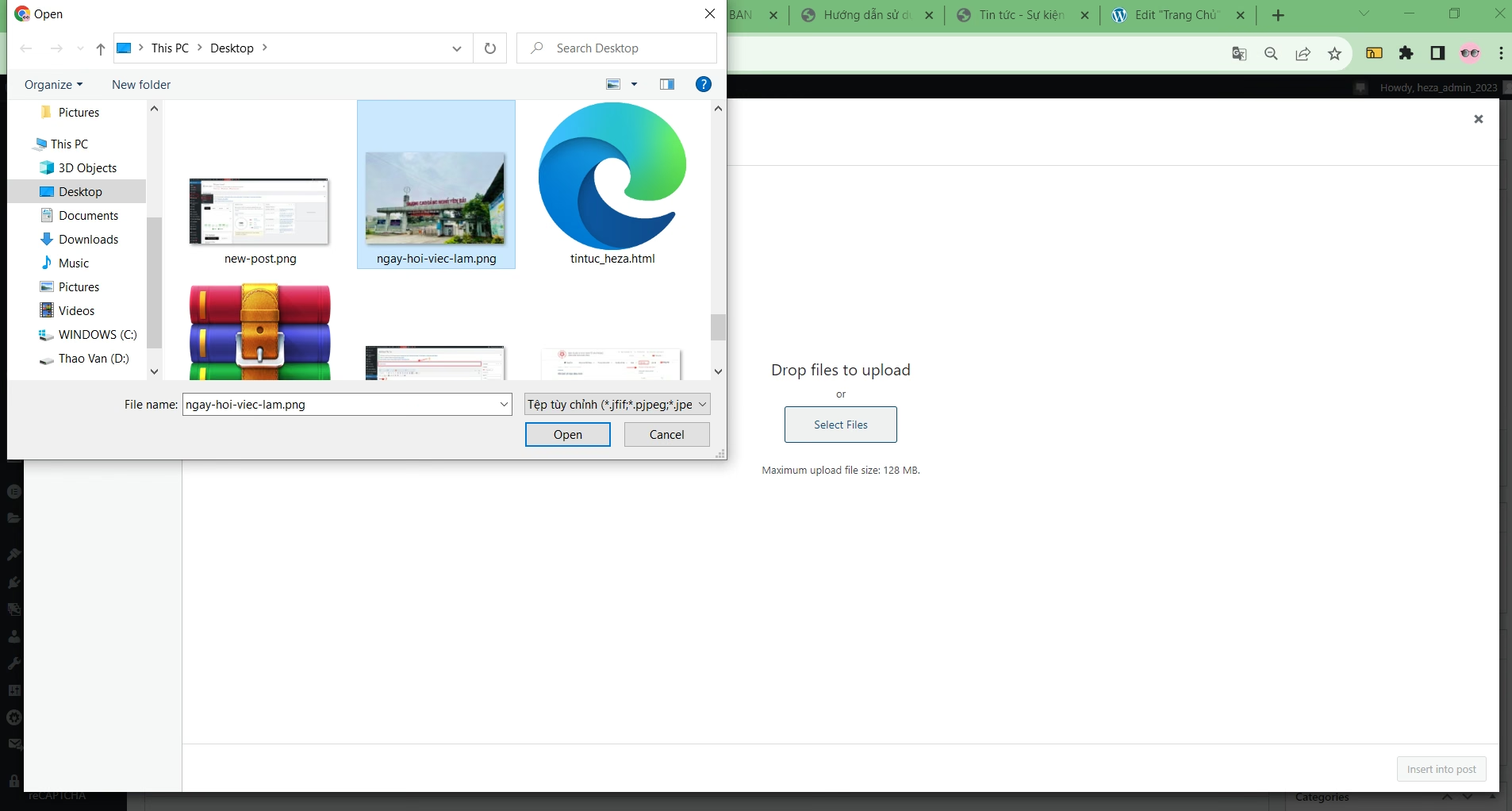
- Select the image you want to upload, then click Open
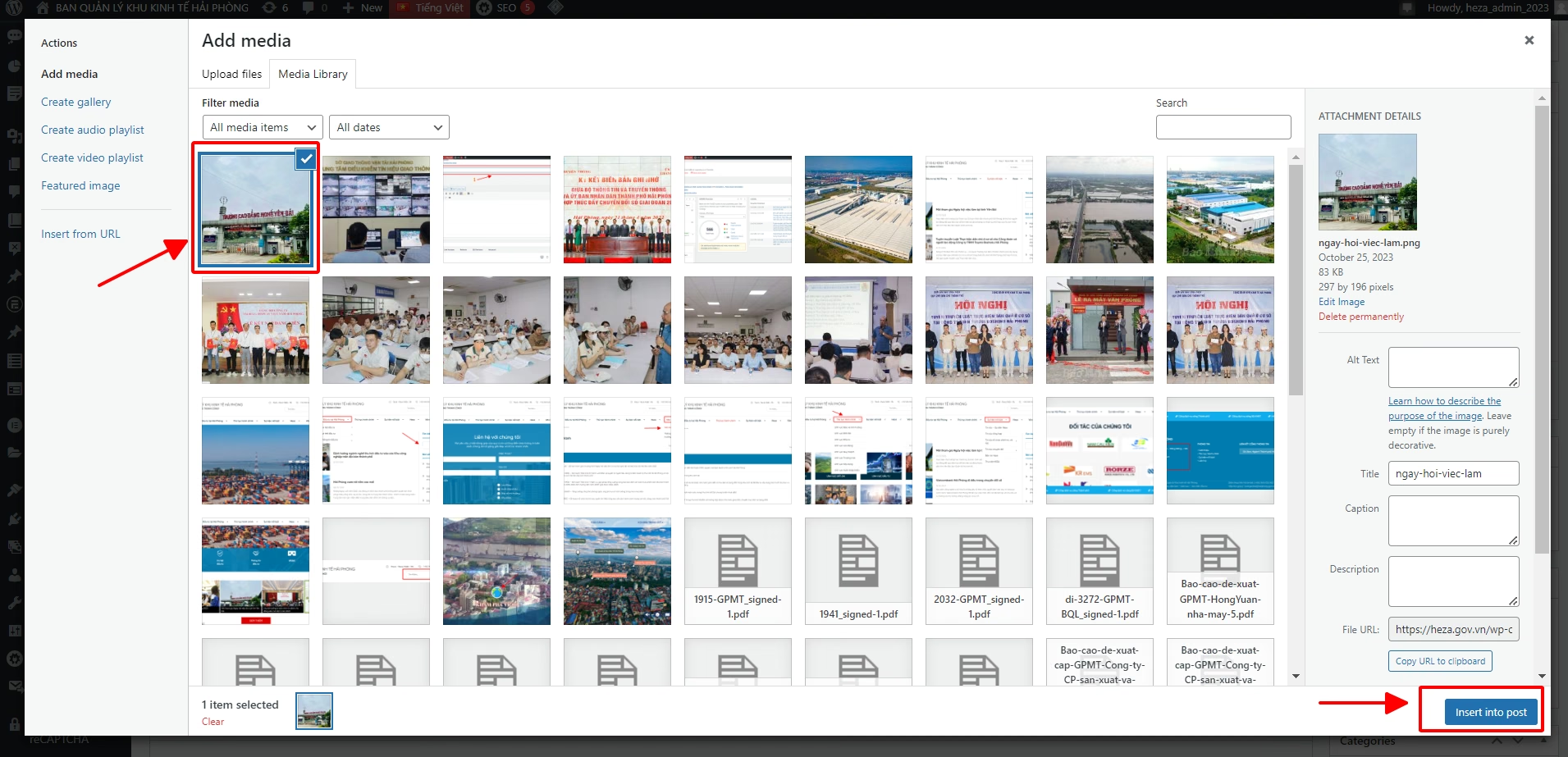
- The following interface appears; select the image you want to add to the article, then click Insert into post .
- The image is then added to the article as shown below. Click the image and select this icon to center it.
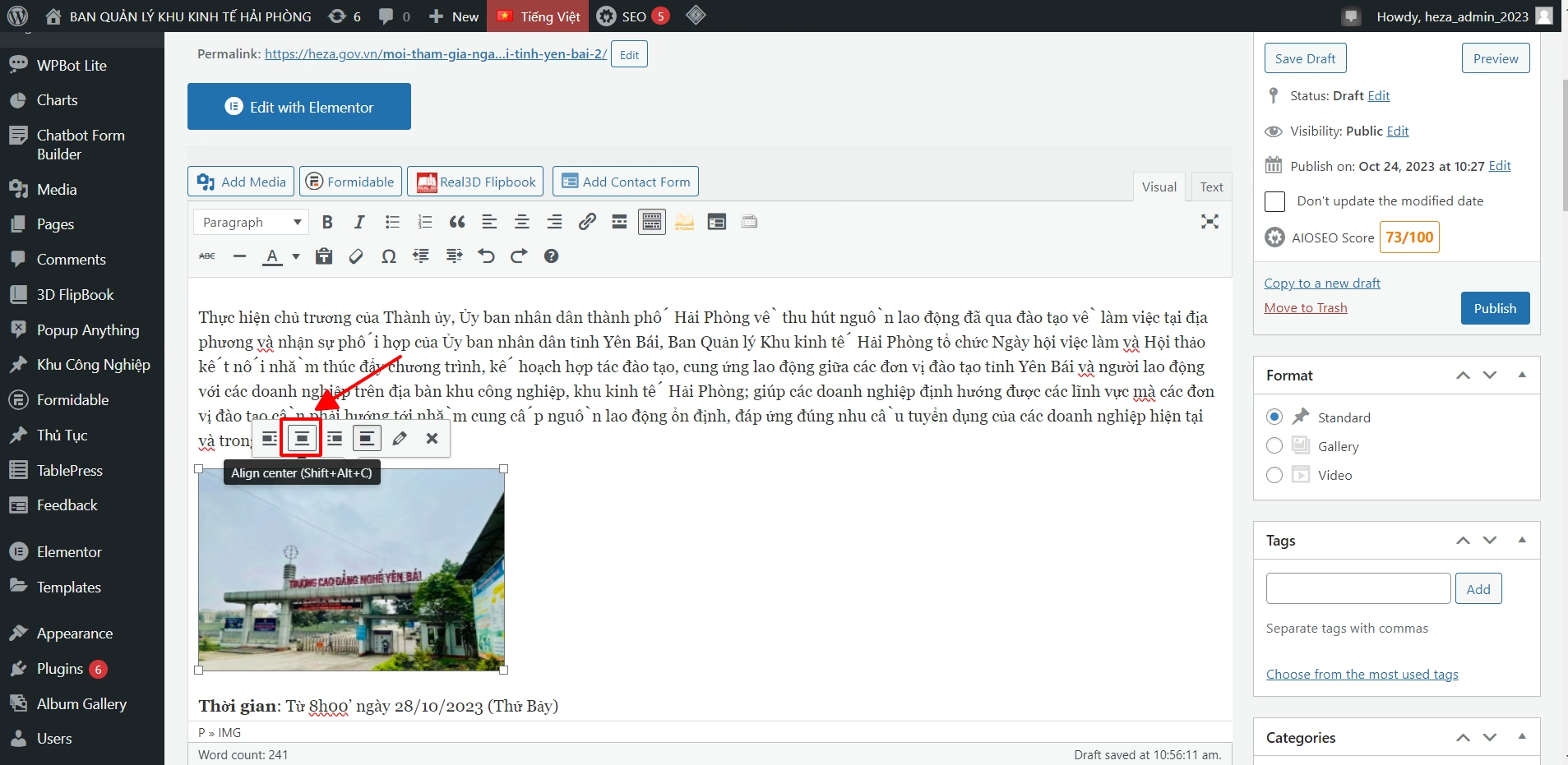
- The image is centered in the article
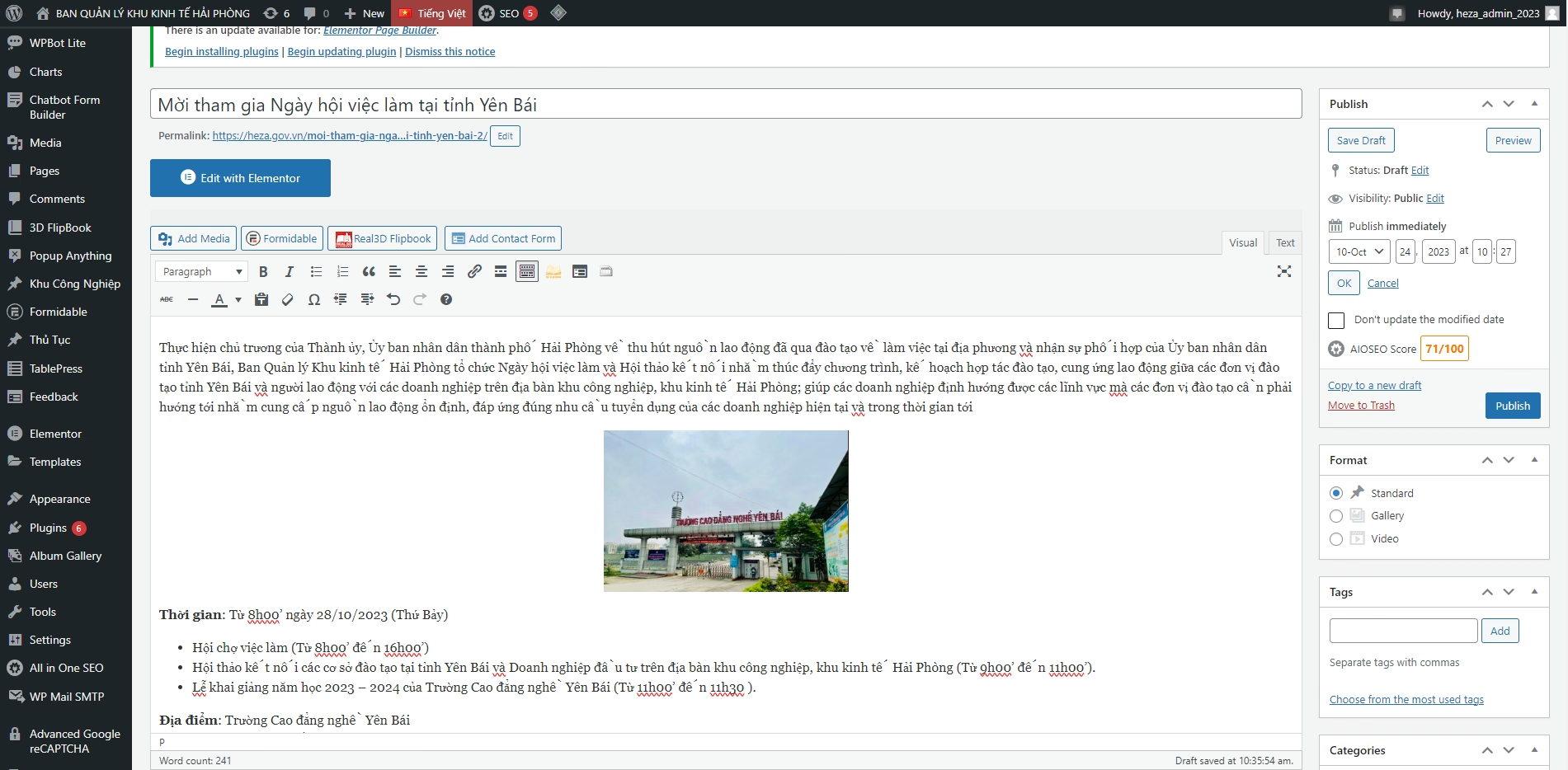
Step 3 : Select thearticle categoryand selectfeatured imagefor the article
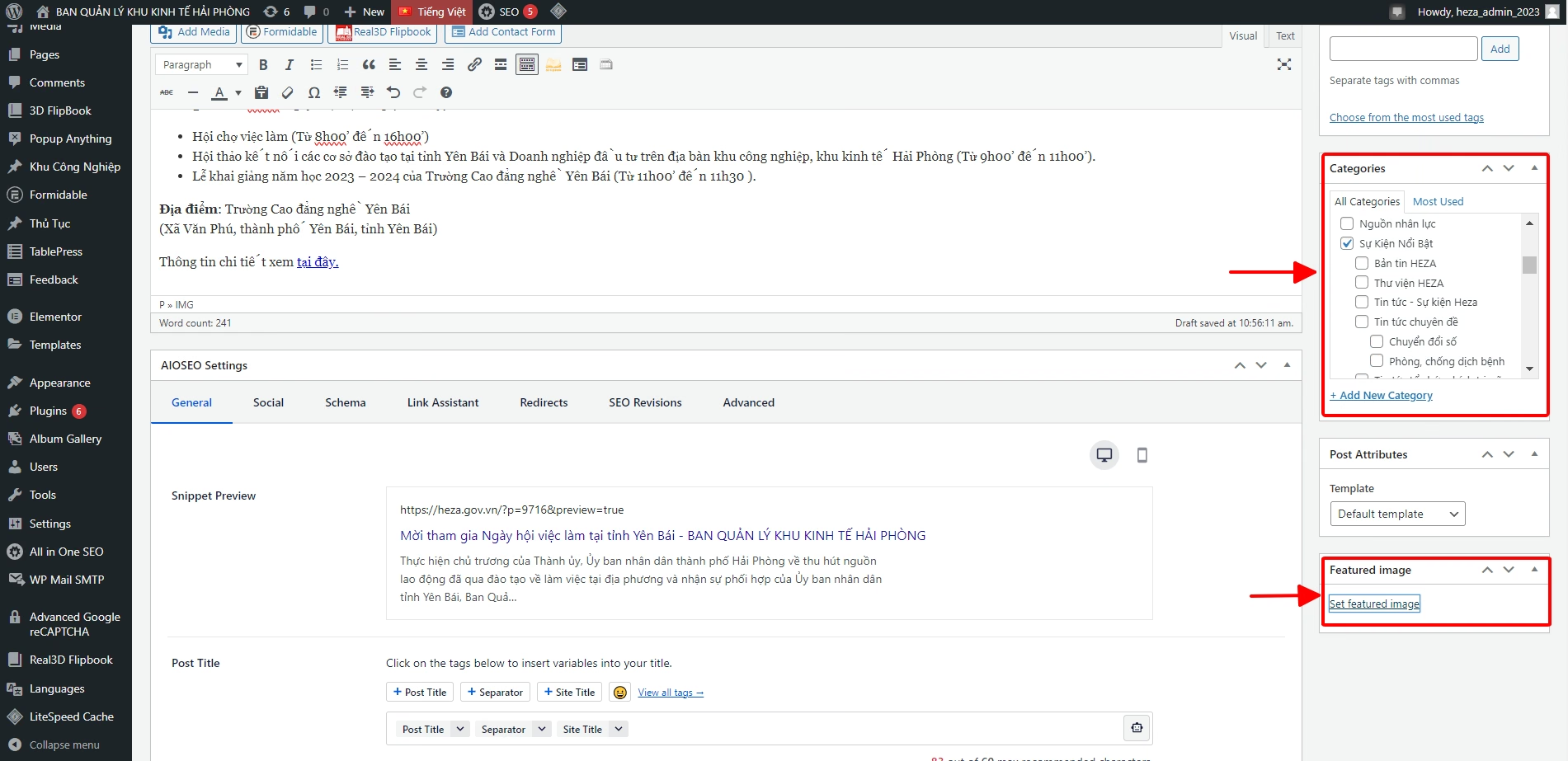
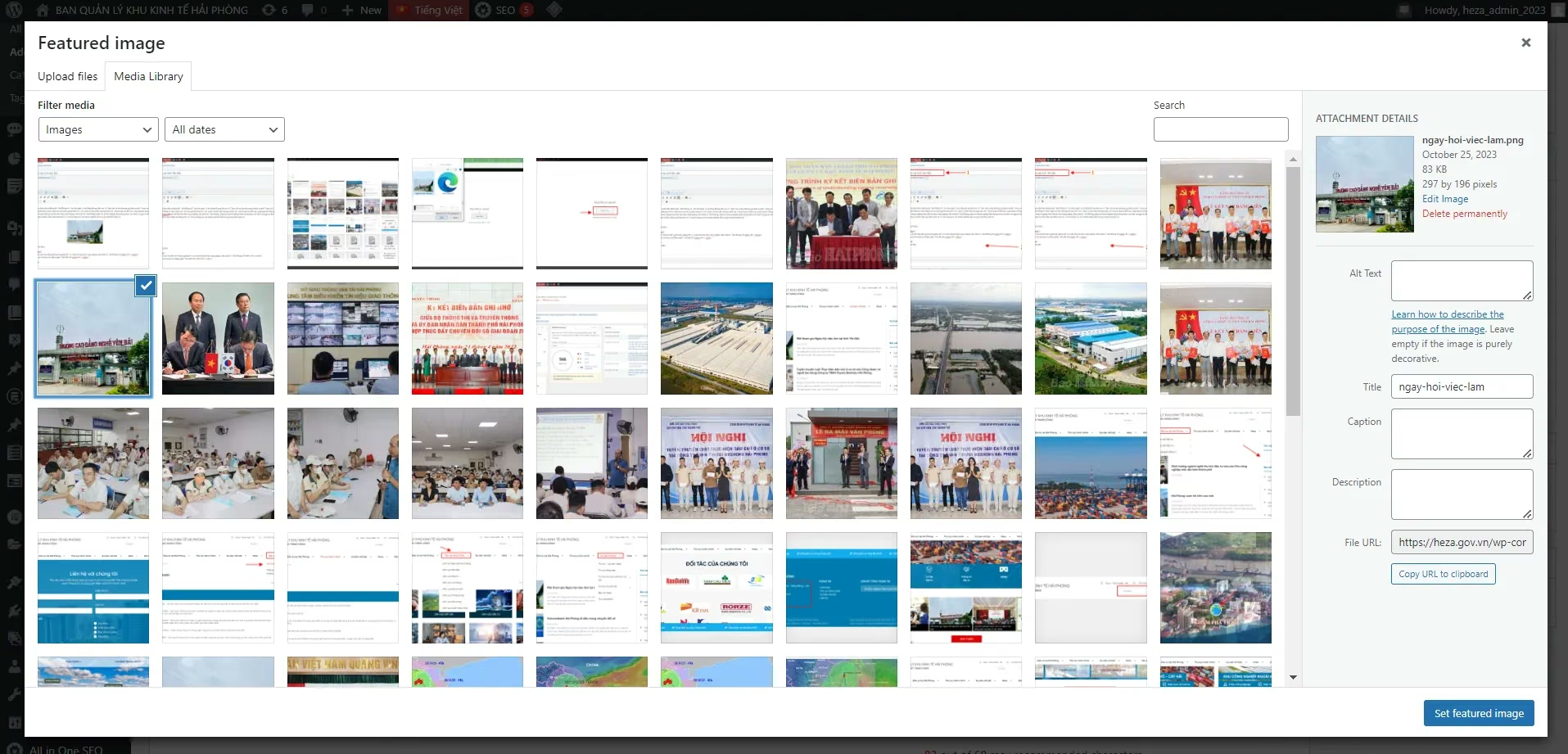
- Select the featured image for the article.
Step 4: Publish the article
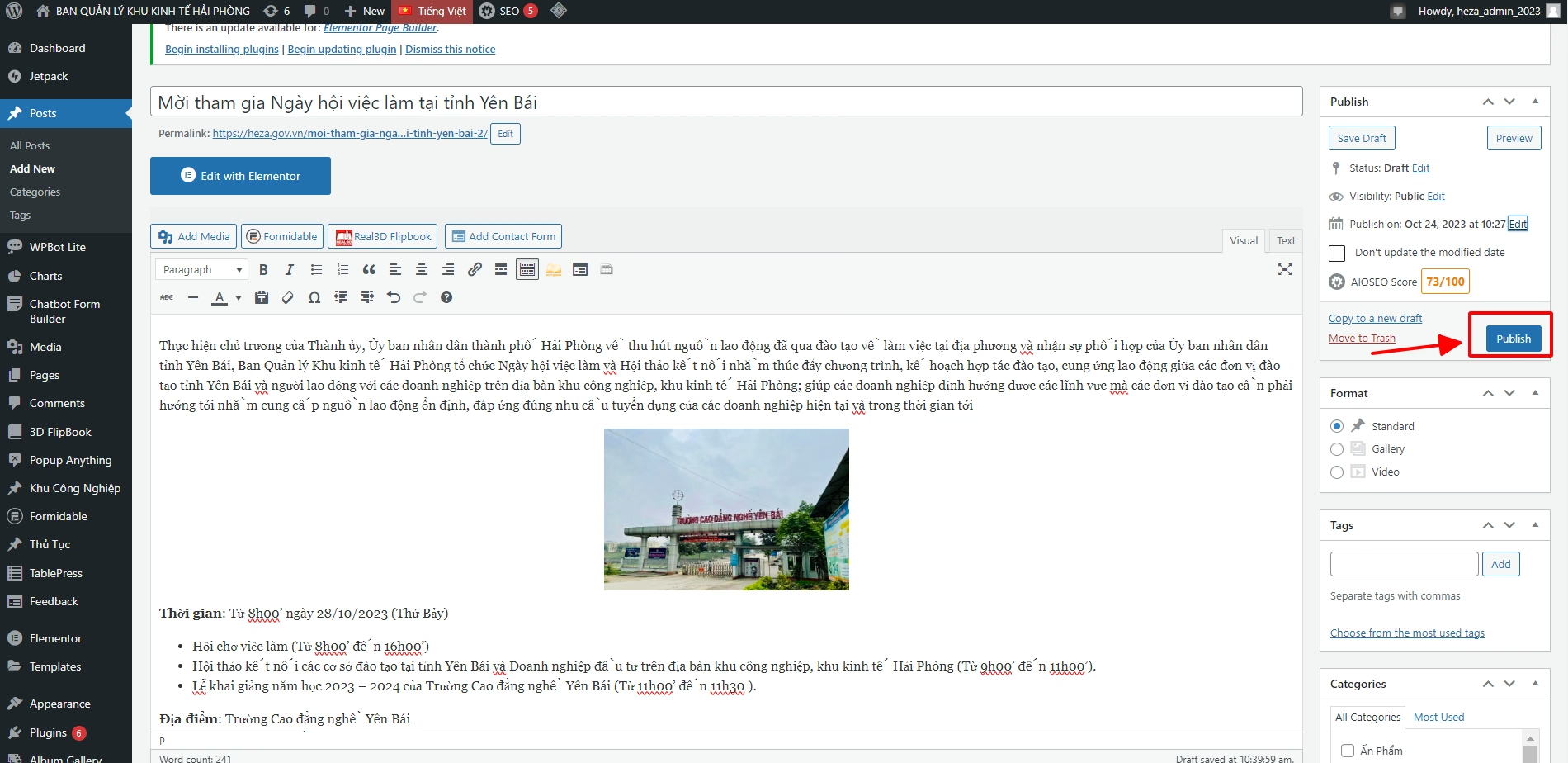
Step 5: Check the selected category on the website; the article will be displayed as shown below.
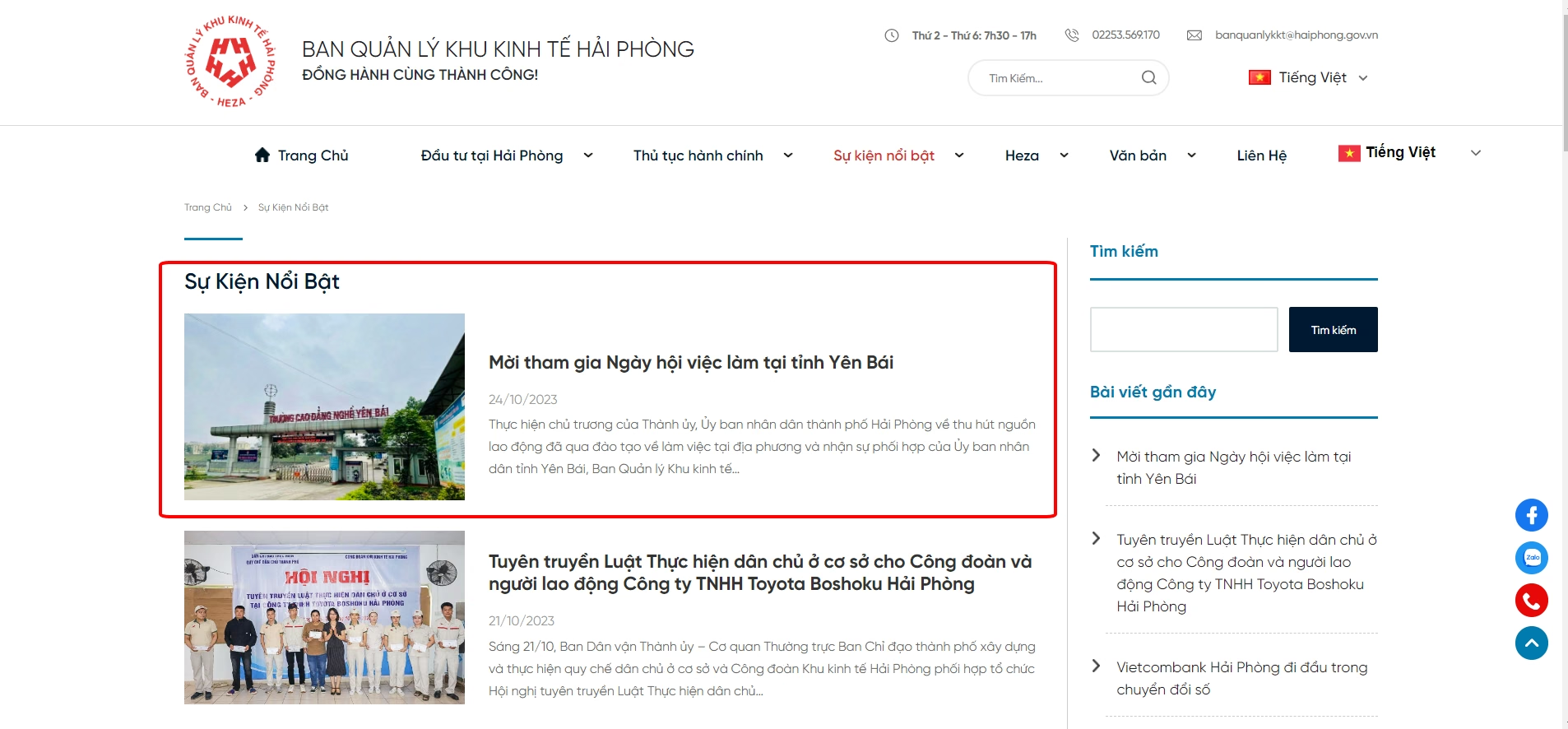
2. Publish documents, directives and procedures
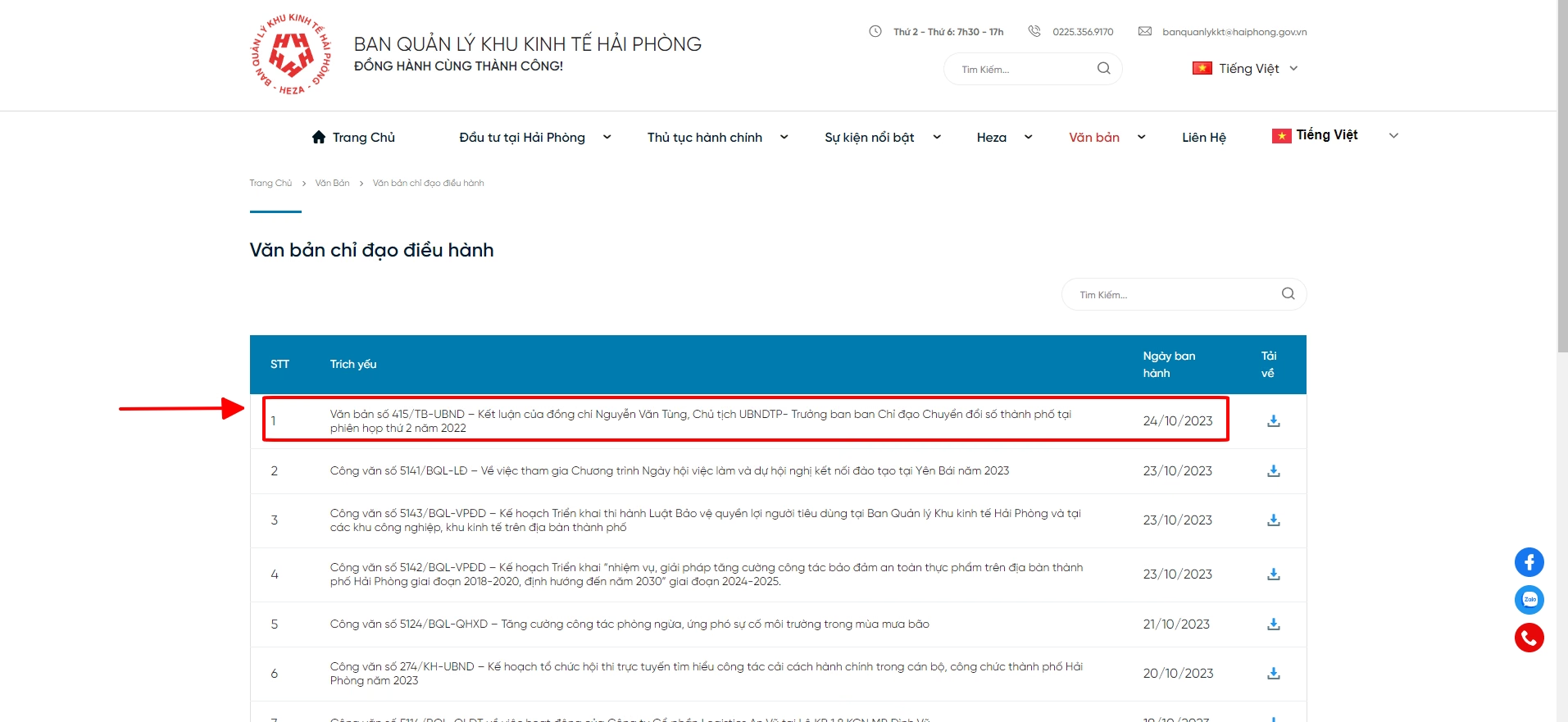
The document, information and directive types presented below include:
- Directives and administrative documents
- Environmental information : Projects applying for an environmental permit and Projects granted an environmental permit
- Administrative procedures include: Environmental protection , Land , Investment , Planning , Labour , Import and export , Trade , Construction
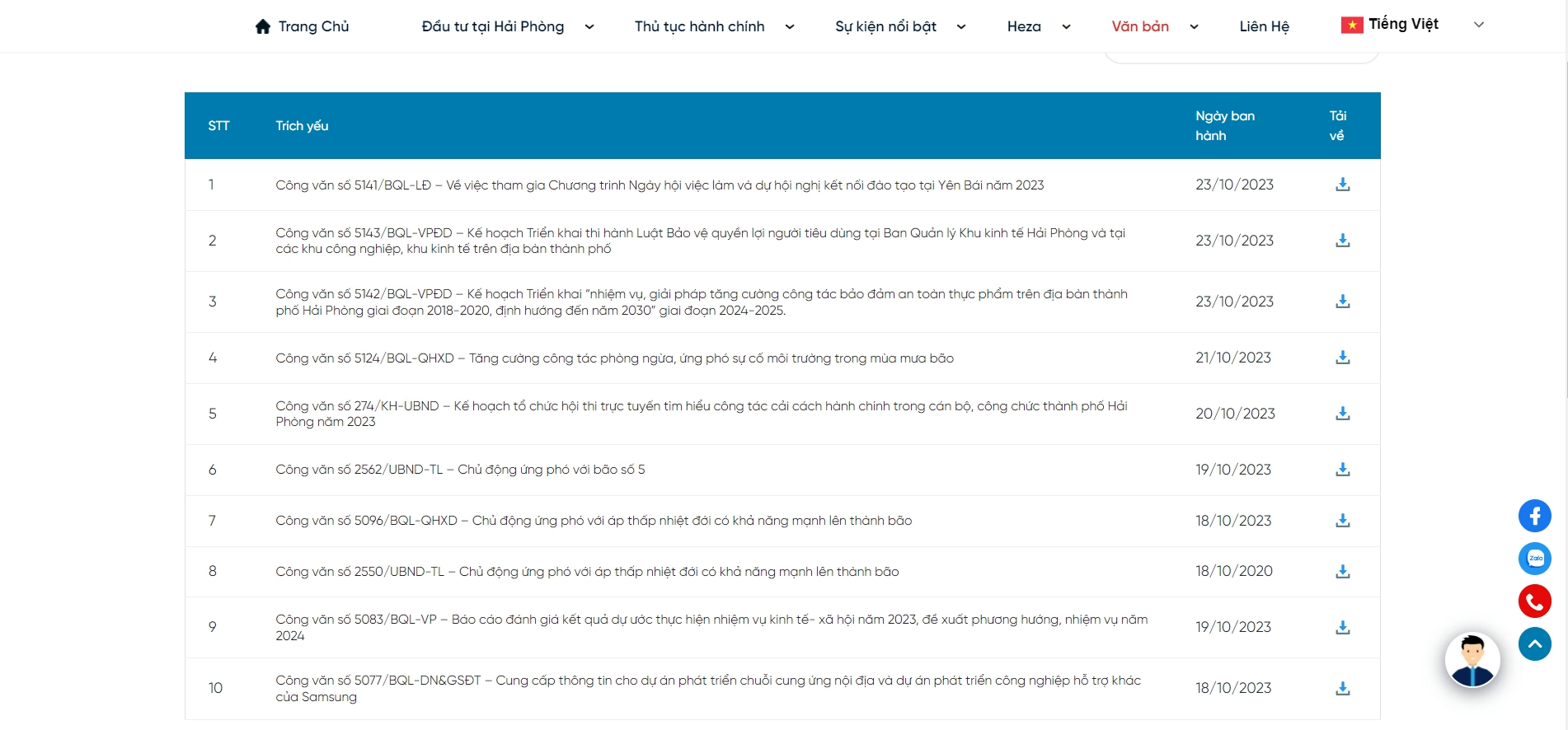
Document page interface
Step 1: On theAdmin Dashboard, hover over in the toolbarProcedures, the submenu appears as shown below; clickAdd New
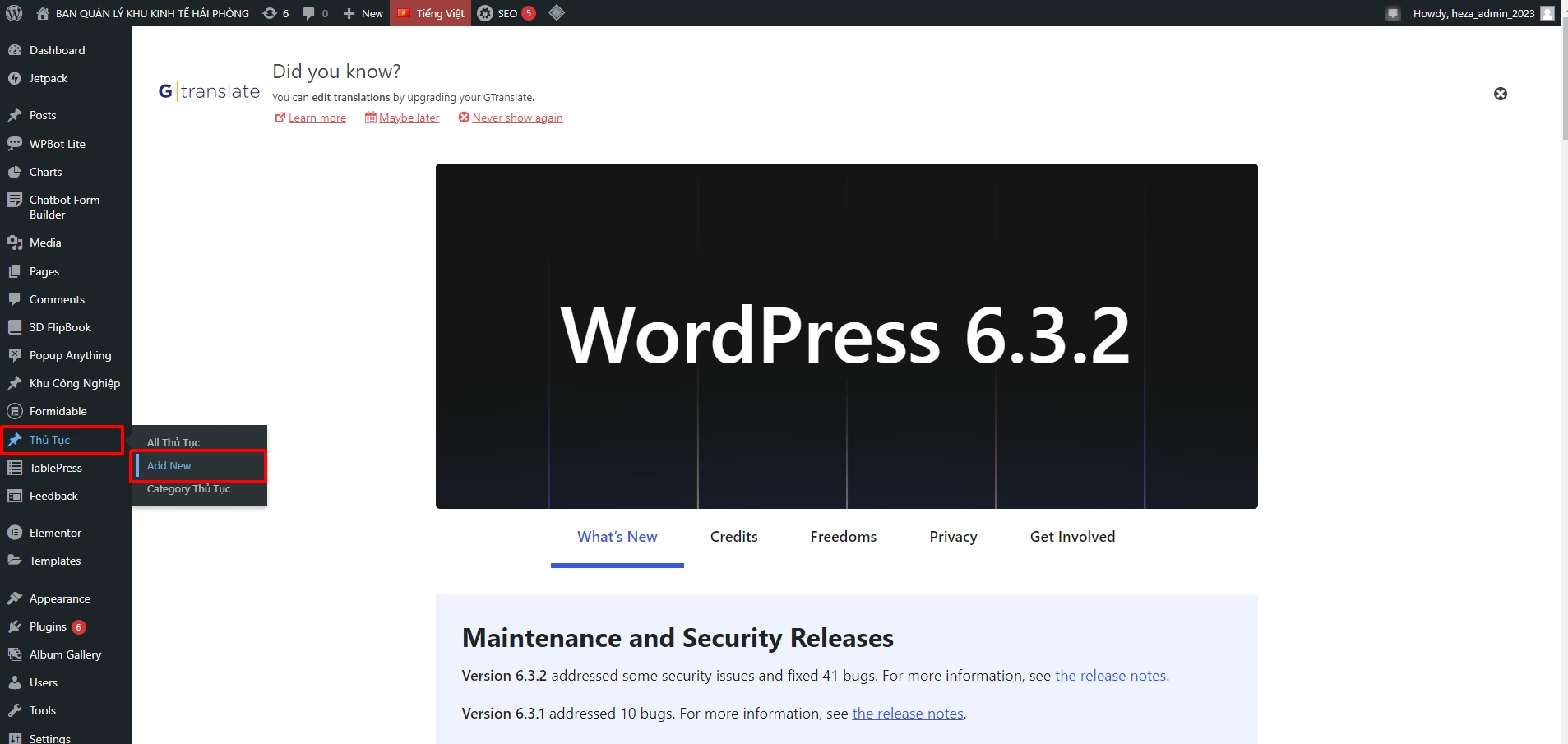
Step 2: The document creation interface then appears as follows.
Follow the same steps as publishing a news article above.
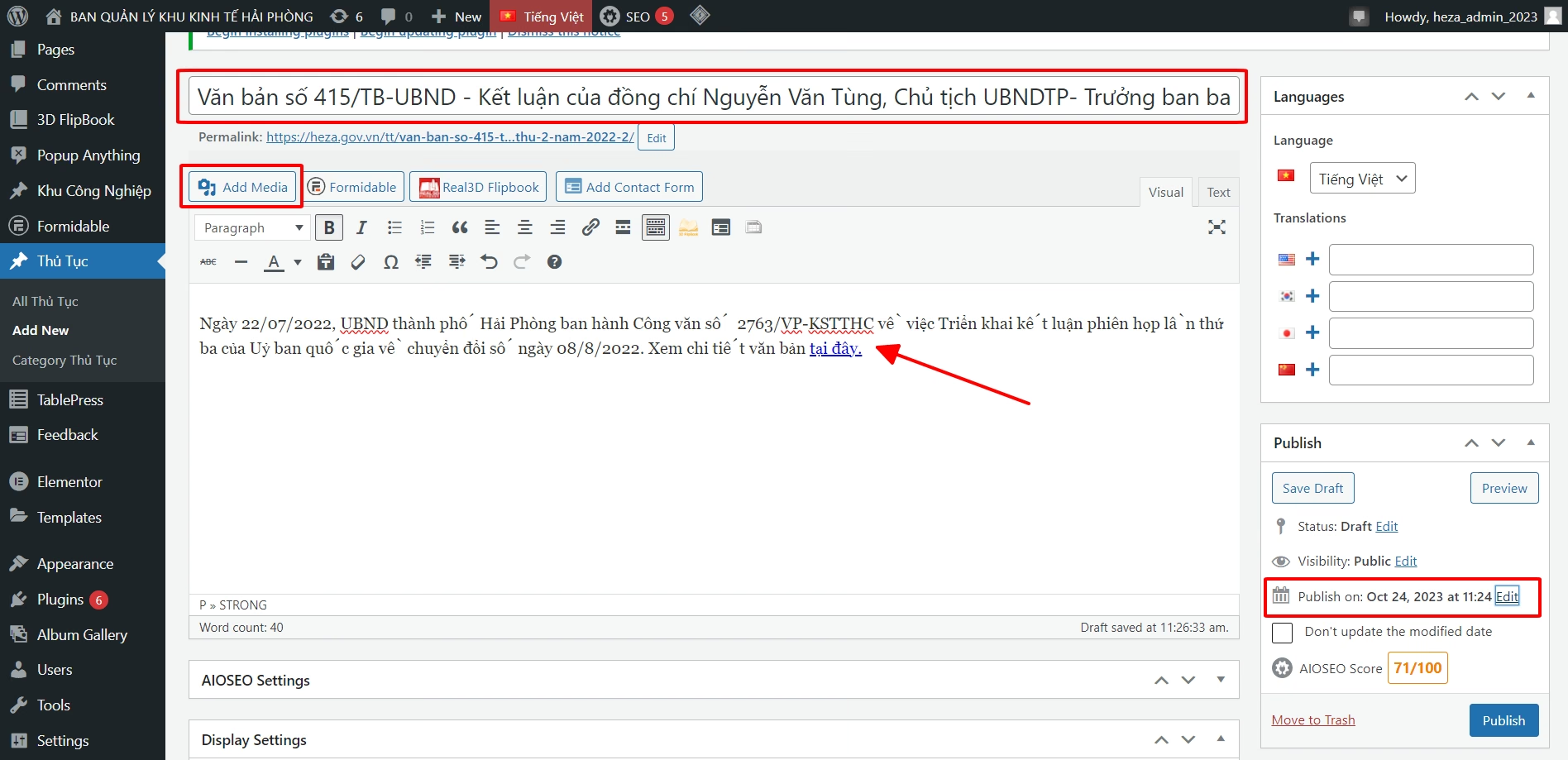
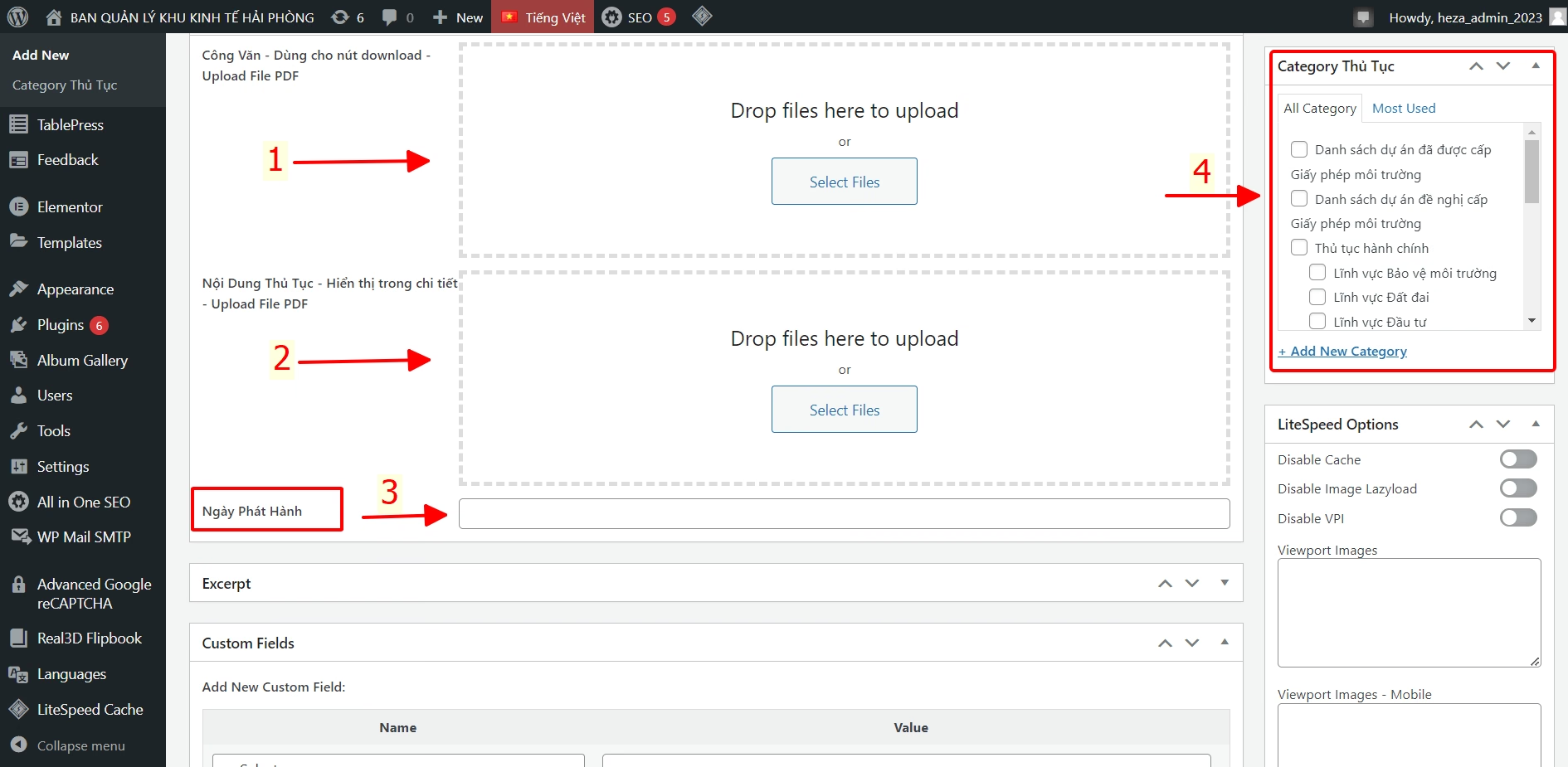
Step 3: Enter the document file, issue date and category.
- (1), (2) Select the document file : Click Select Files , then select and upload the document file. The text file is PDF file
- (3) Issue date: day/month/year
- (4) Enter the category: Select the category where you want this information to appear
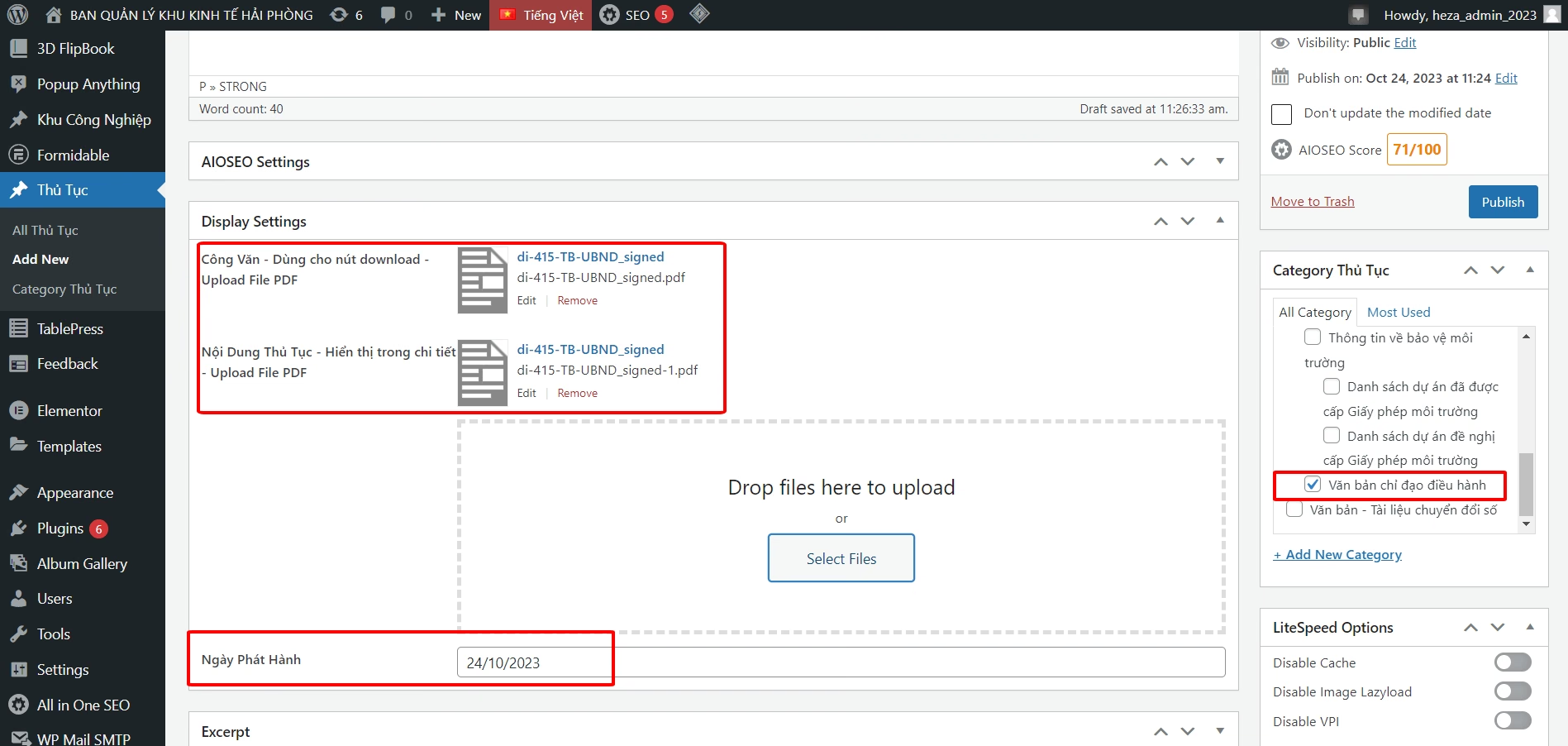
After all information is entered and the document is uploaded, it will appear as follows.
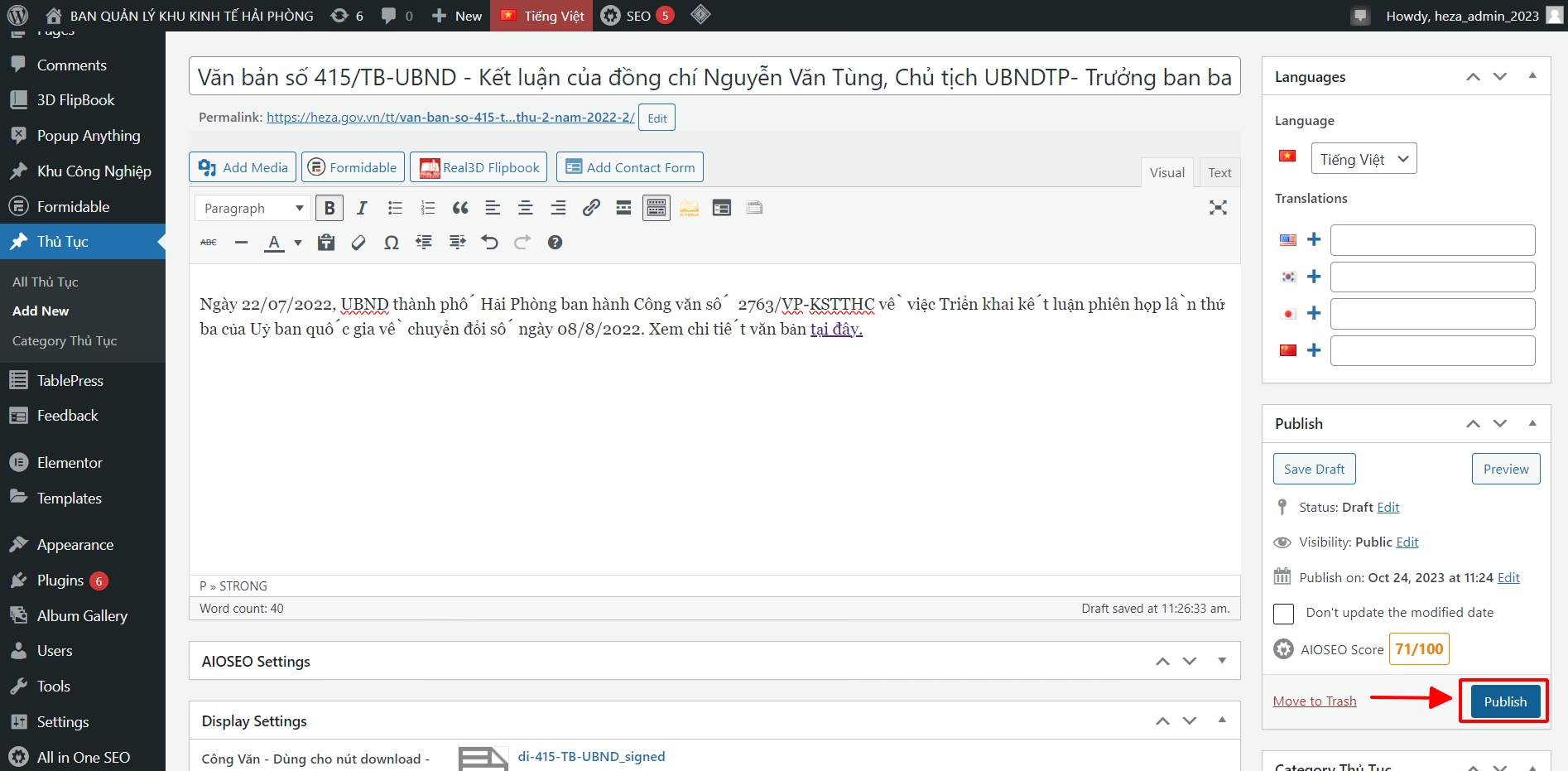
Step 4: Publish the document
Step 5: Check that the document has been added to the selected category.
3. Create and publish chart
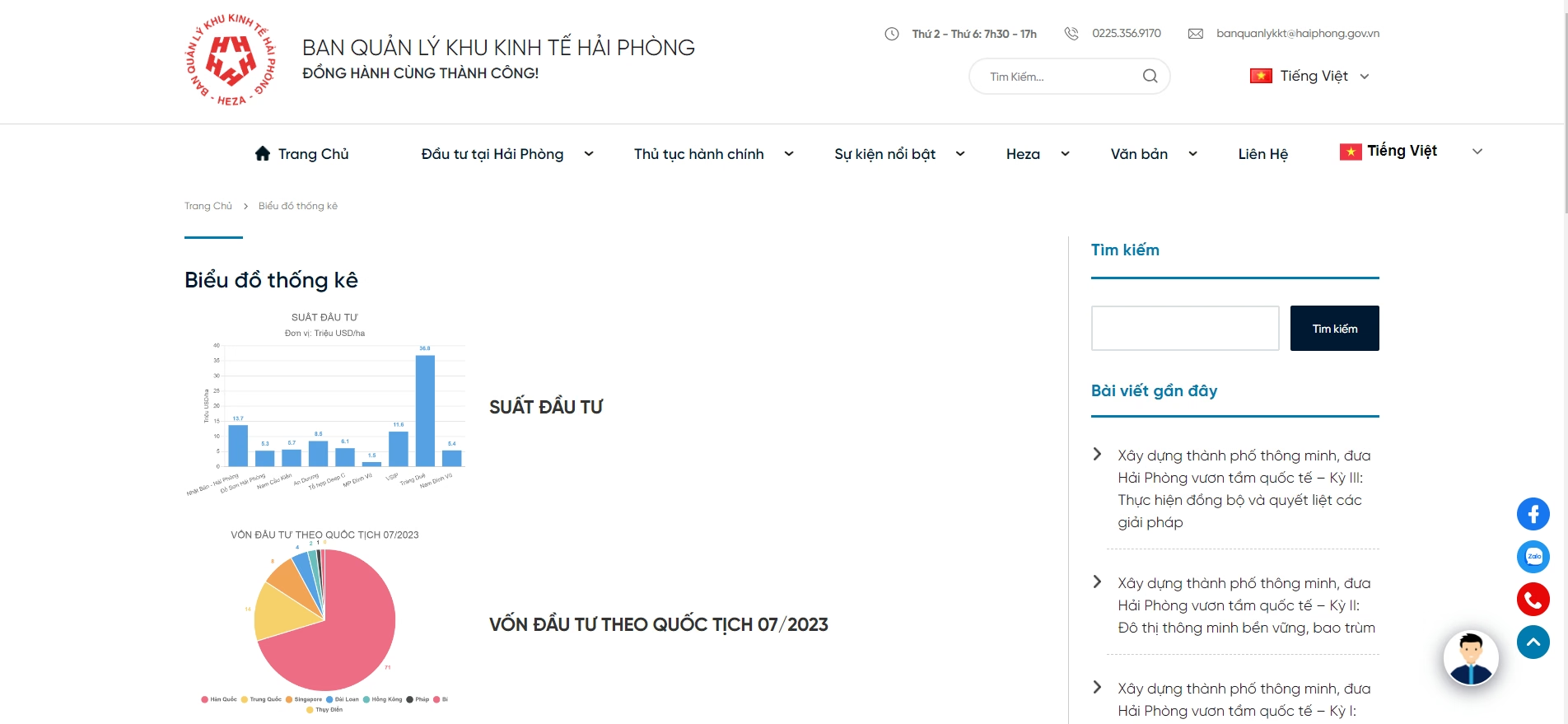 Chart statistics table in the page interface
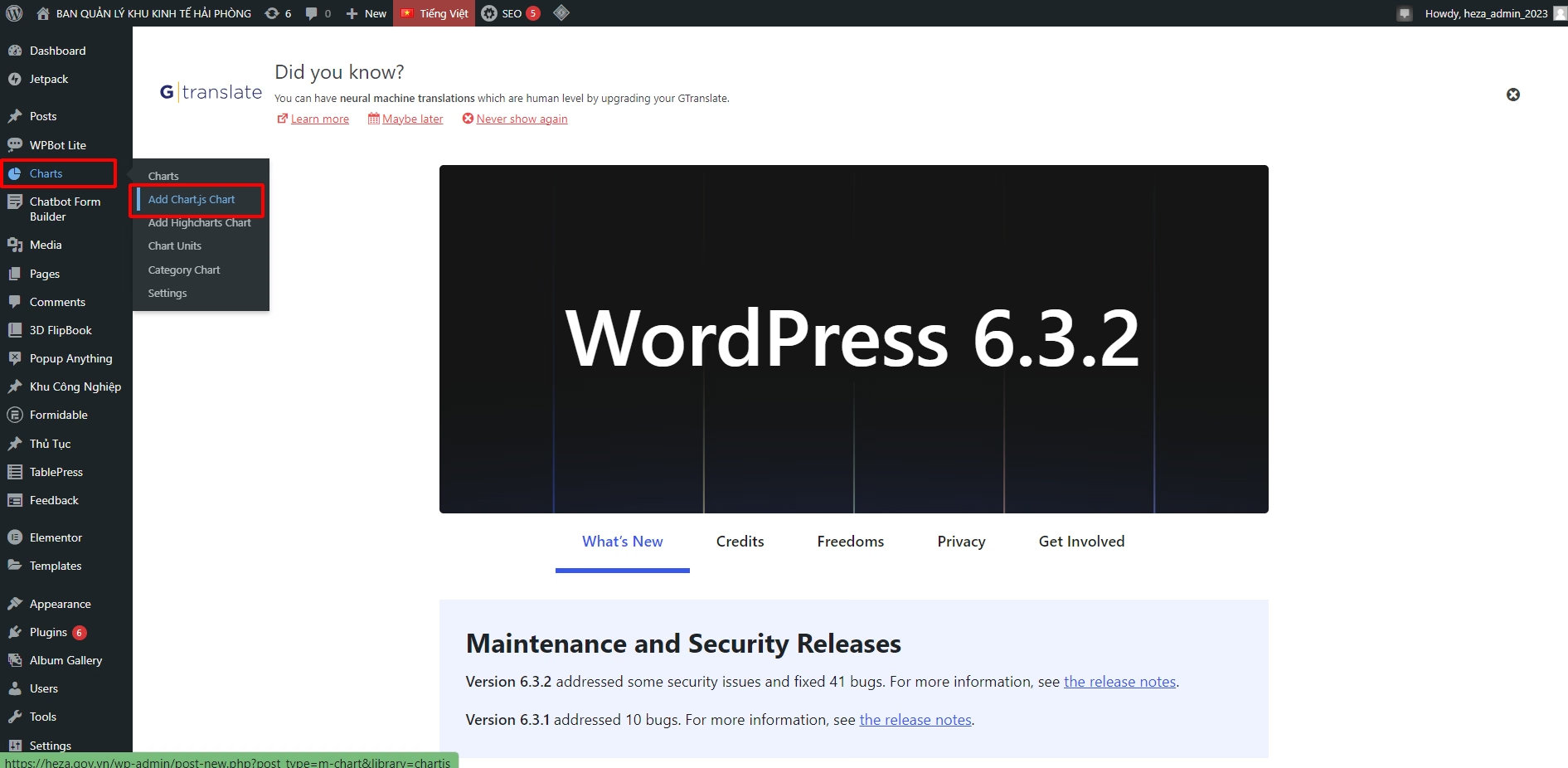
Step 1: On theAdmin Dashboard, selectCharts, display the information panel shown below, then selectAdd Chart.js Chart
The screen then appears as follows:
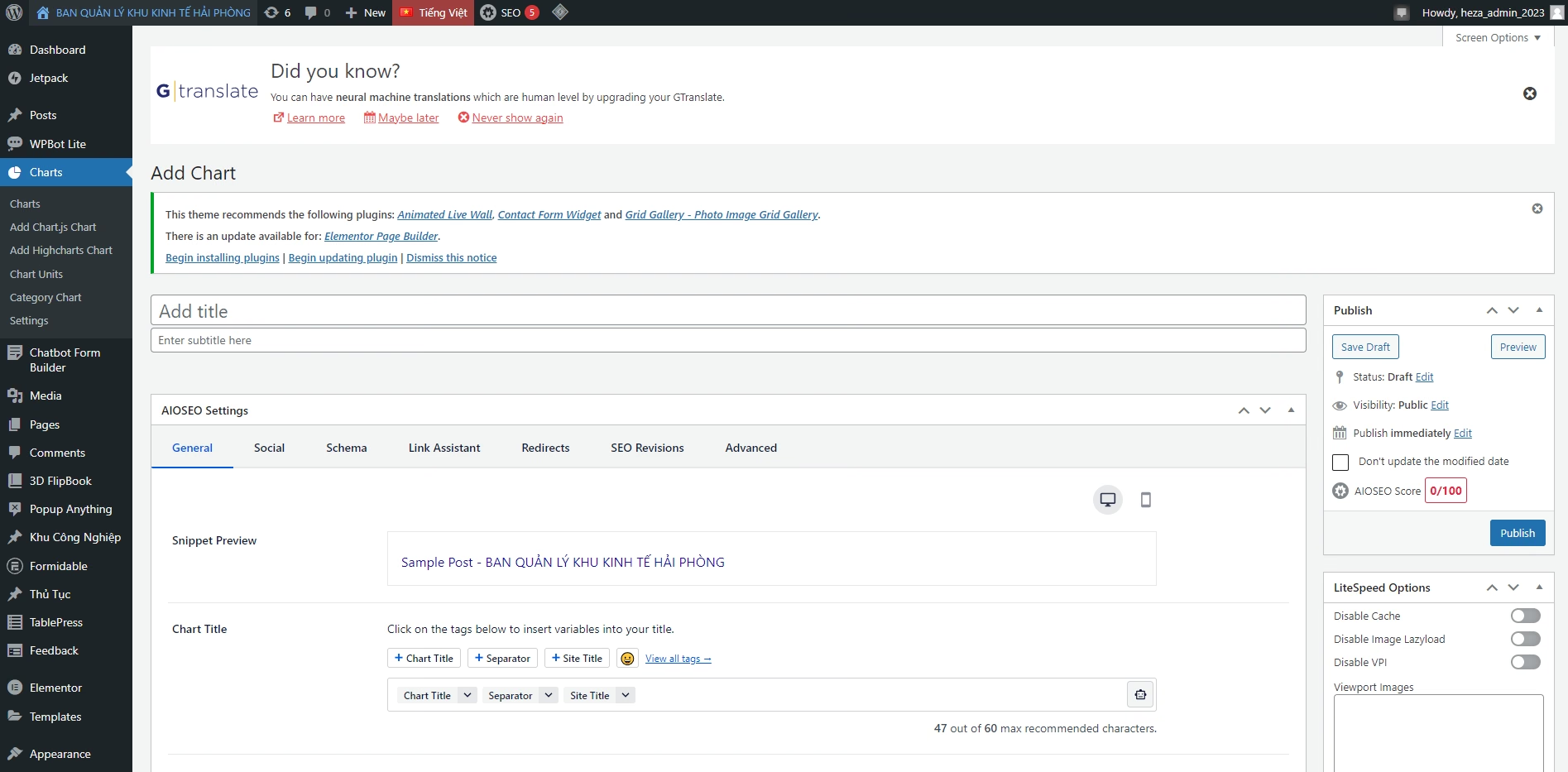
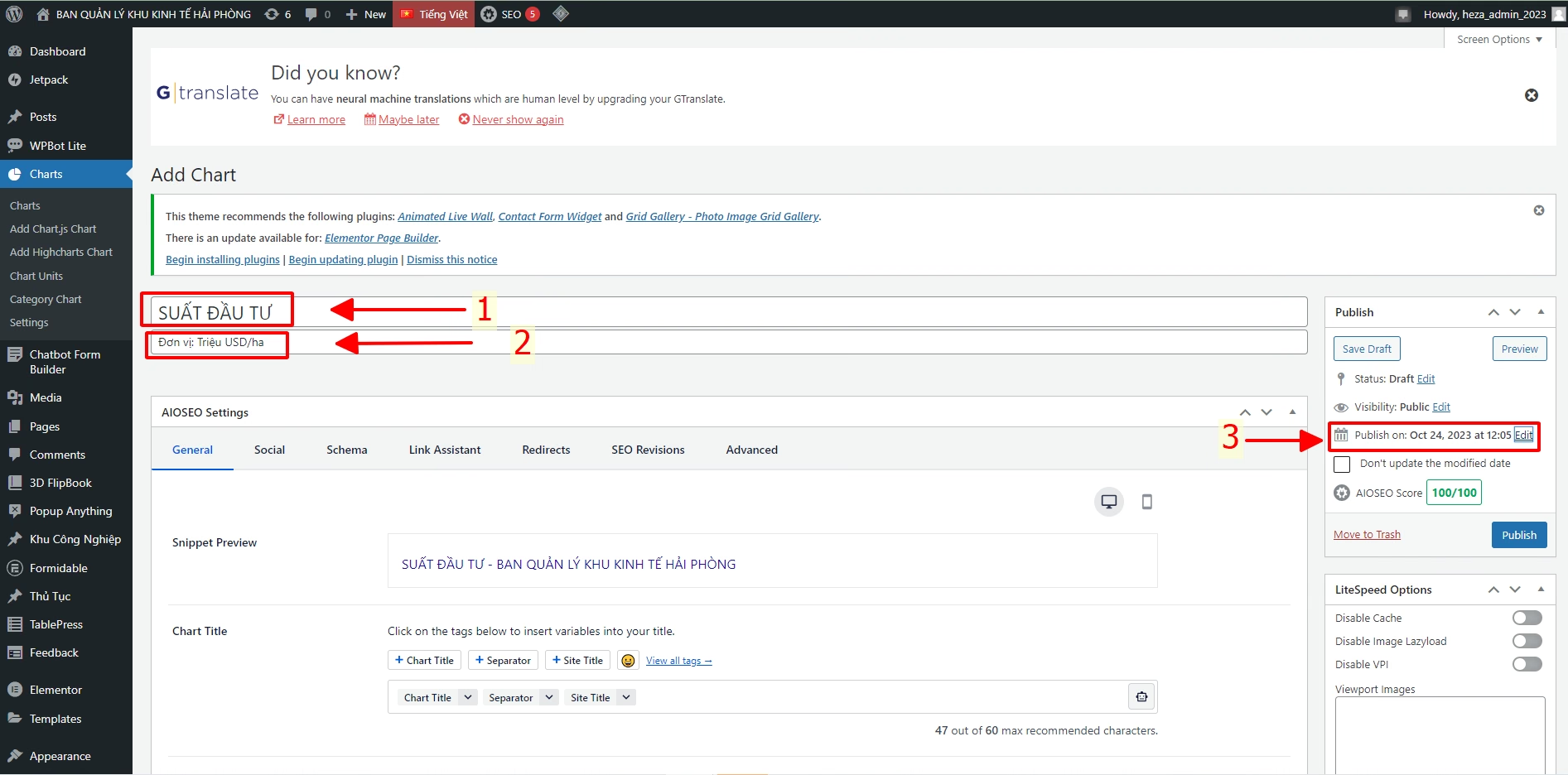
Step 2: Enter all information
- (1) Chart title
- (2) Subtitle
- (3) Publication date
Step 3 : Scroll down and continue toenter the datain theDatatable
- Method 1 : You can Copy and then Paste into this table
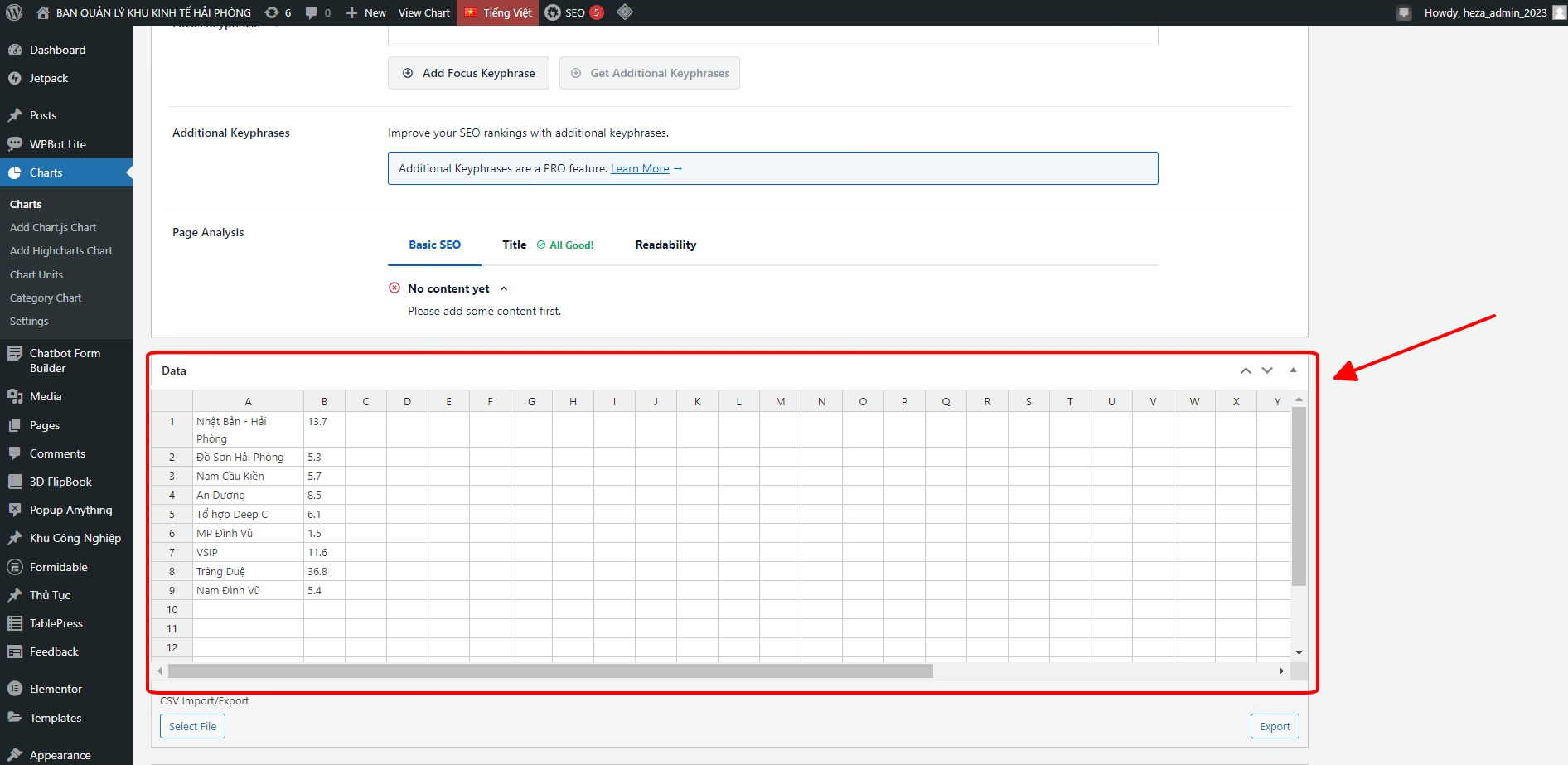
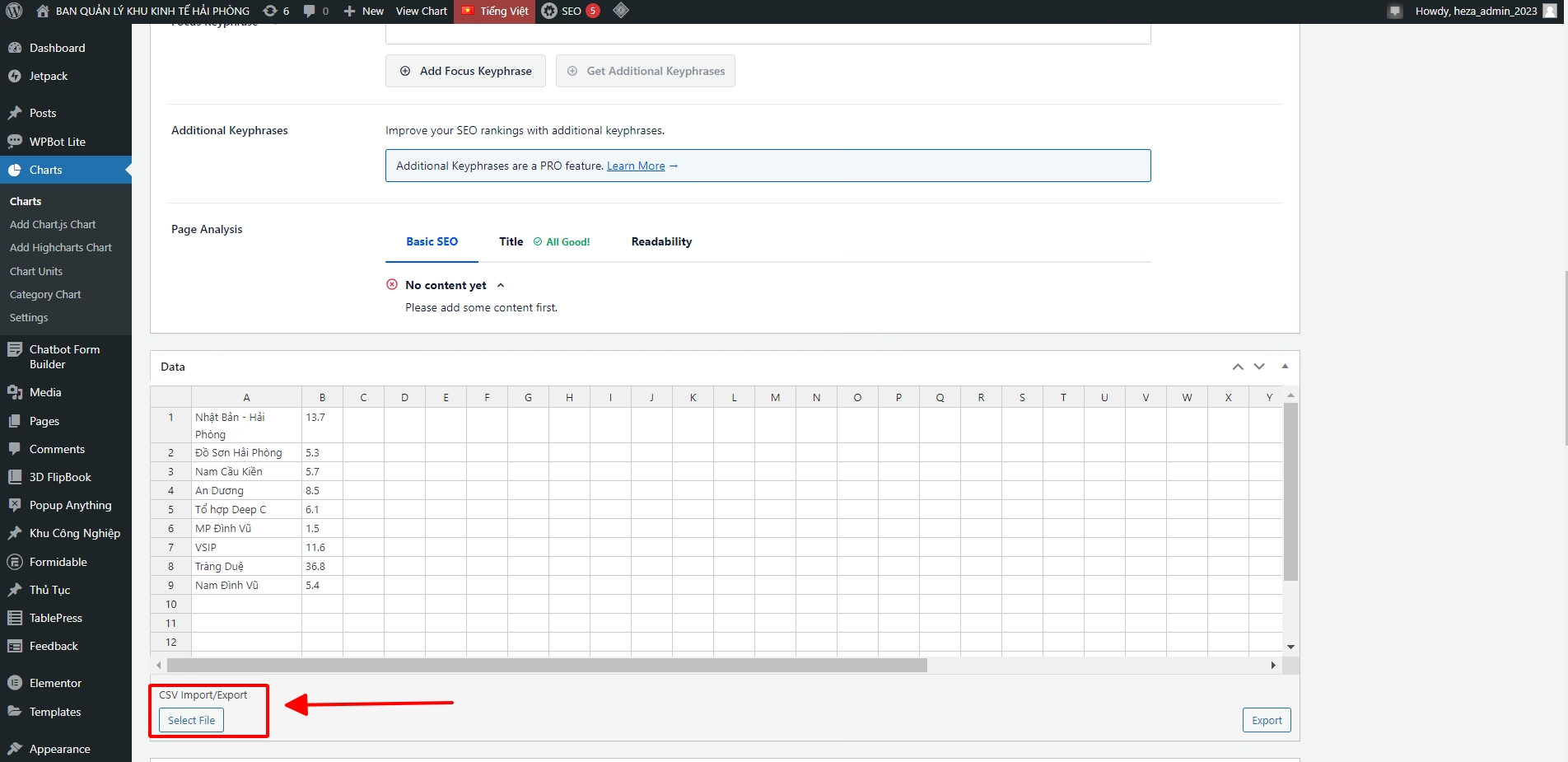
- Method 2 : You can export from an existing file . Select Select File and then select the file containing the data to import to create the chart
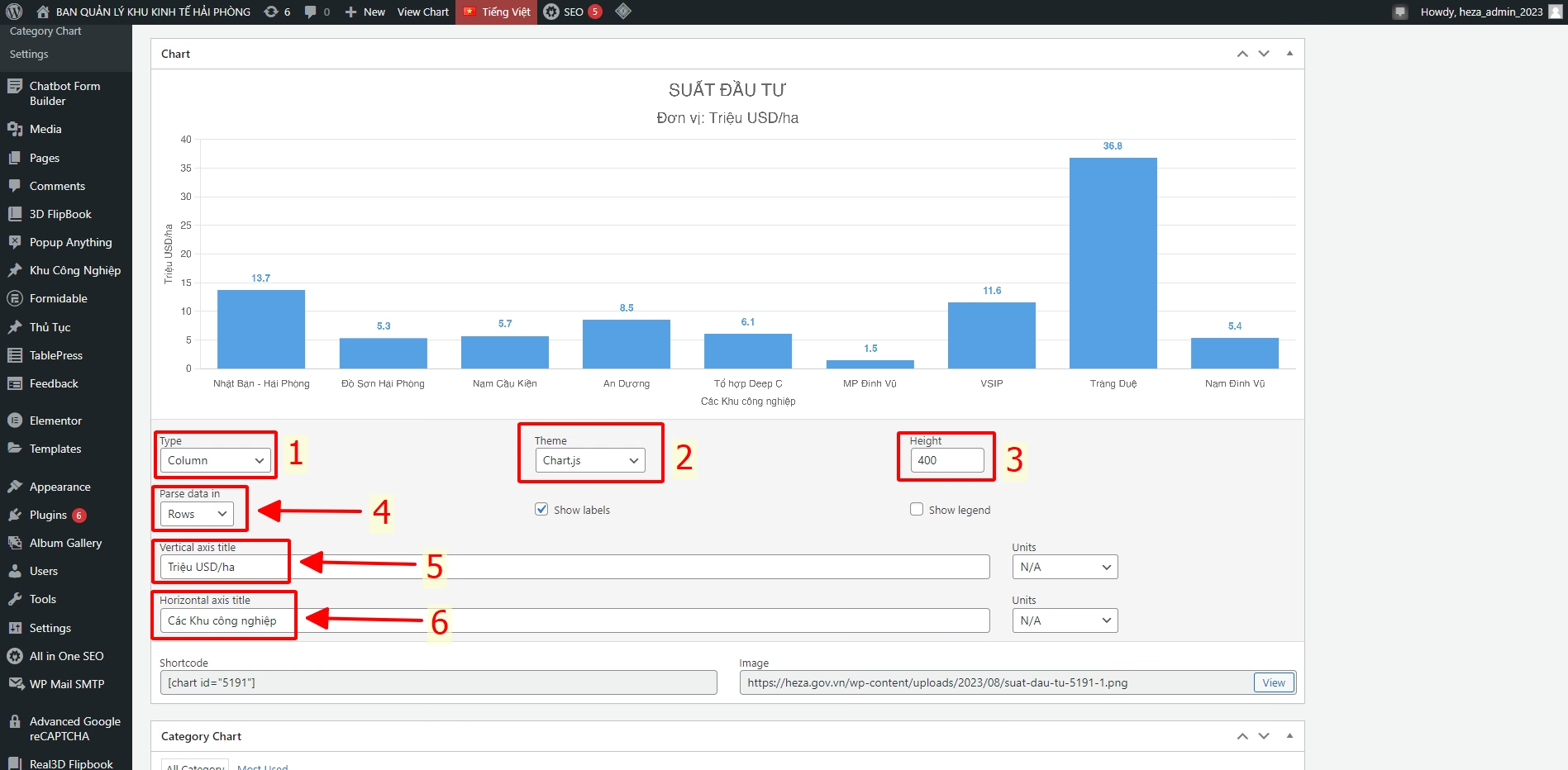
Step 4: After entering the data, it is displayed as this chart. The title and subtitle are those entered in the previous step.
- (1) Select chart types : Vertical bars (Column), Pie chart, Line chart, …
- (2) Select the chart theme and colors for the chart
- (3) Select the height of the chart as desired
- (4) Select how to retrieve data from the data table : vertically (columns) or horizontally (rows)
- (5) Set the vertical title for the table data
- (6) Set the horizontal title for the table data
Step 5 : Scroll down and selectCategorywhere the chart should be placed
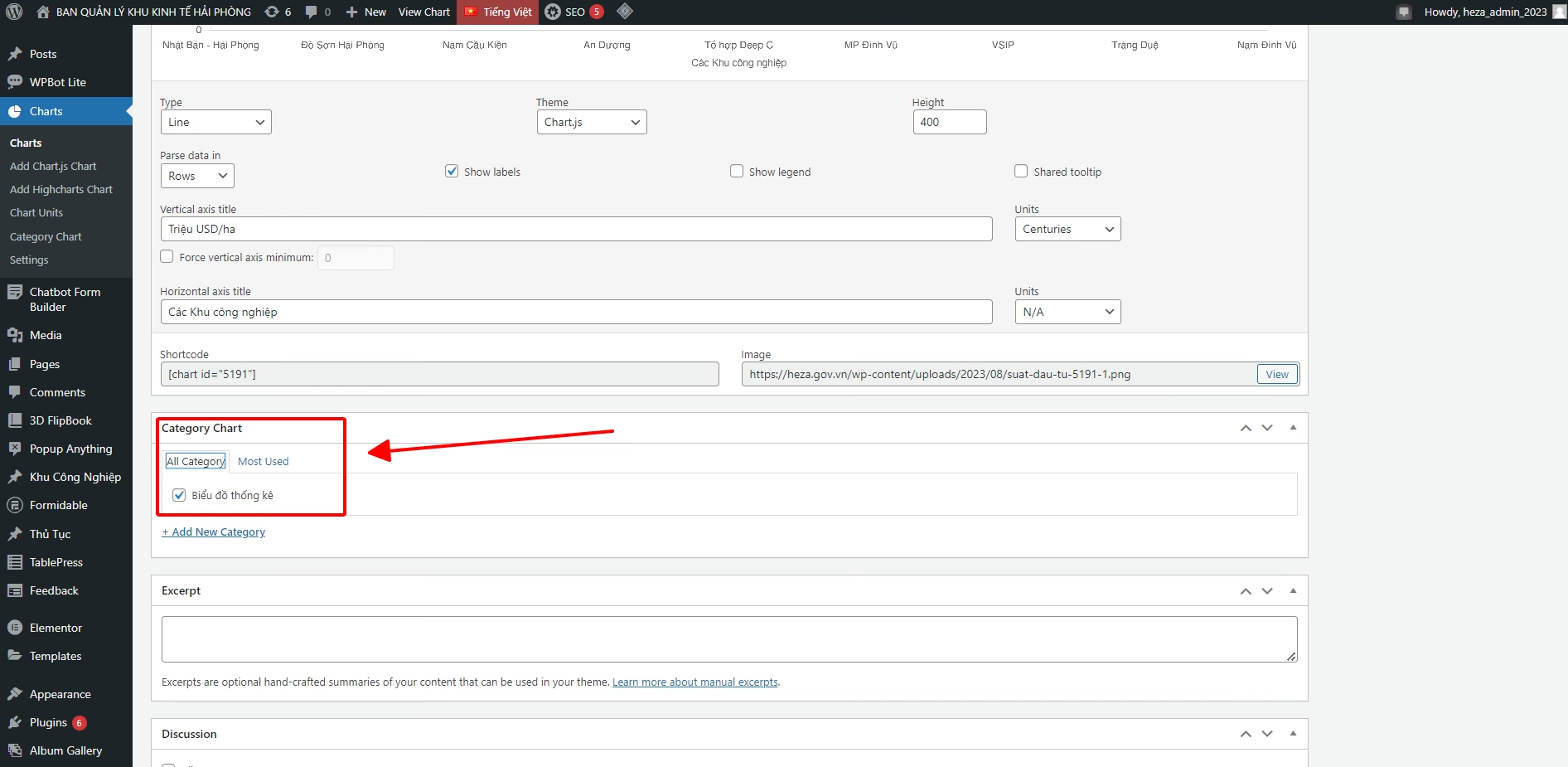
Step 6 : Check the chart in thechart plan
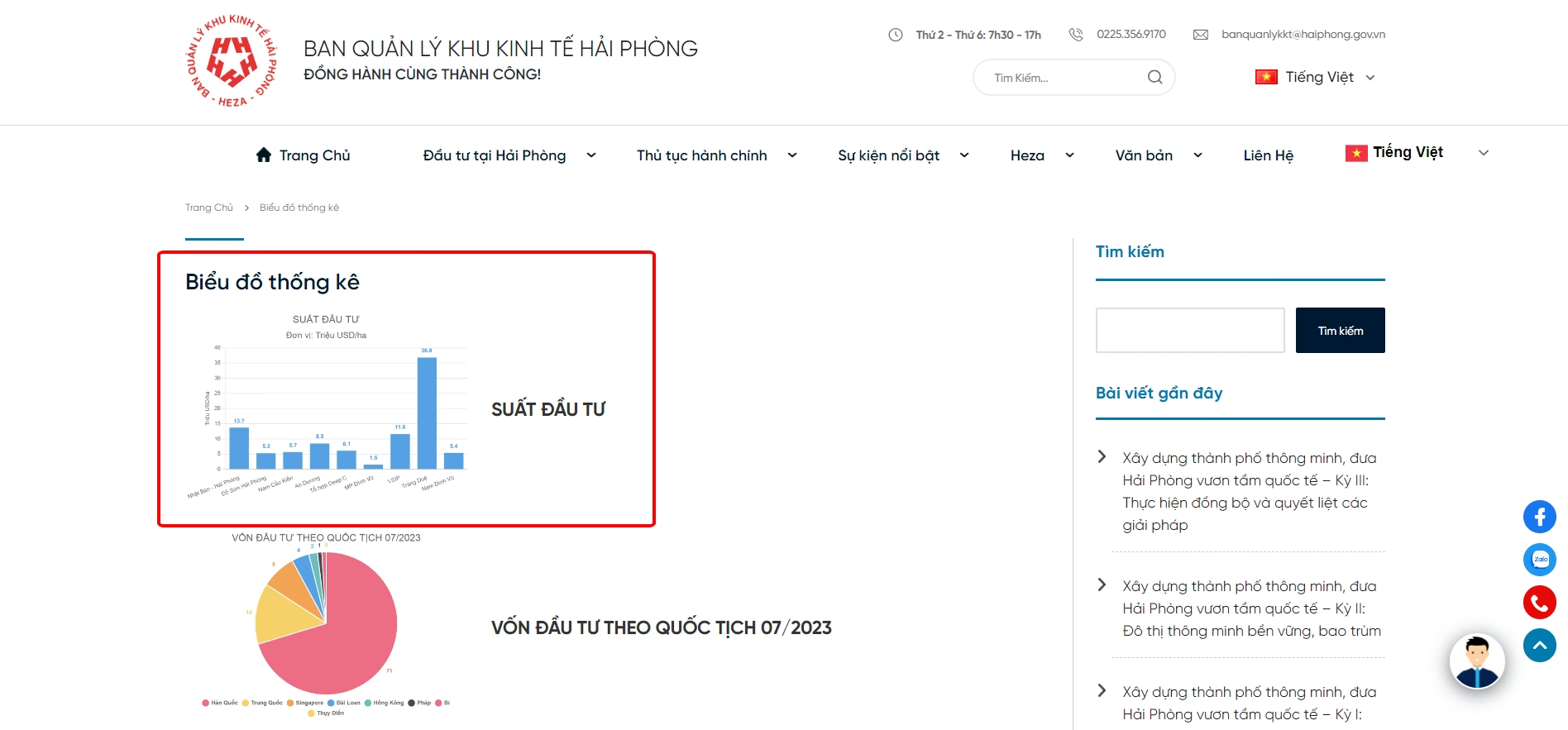
4. Publications
Step 1 : On the Admin Dashboard, hover over(1) 3D FlipBook, display the submenu, then click(2) Add New
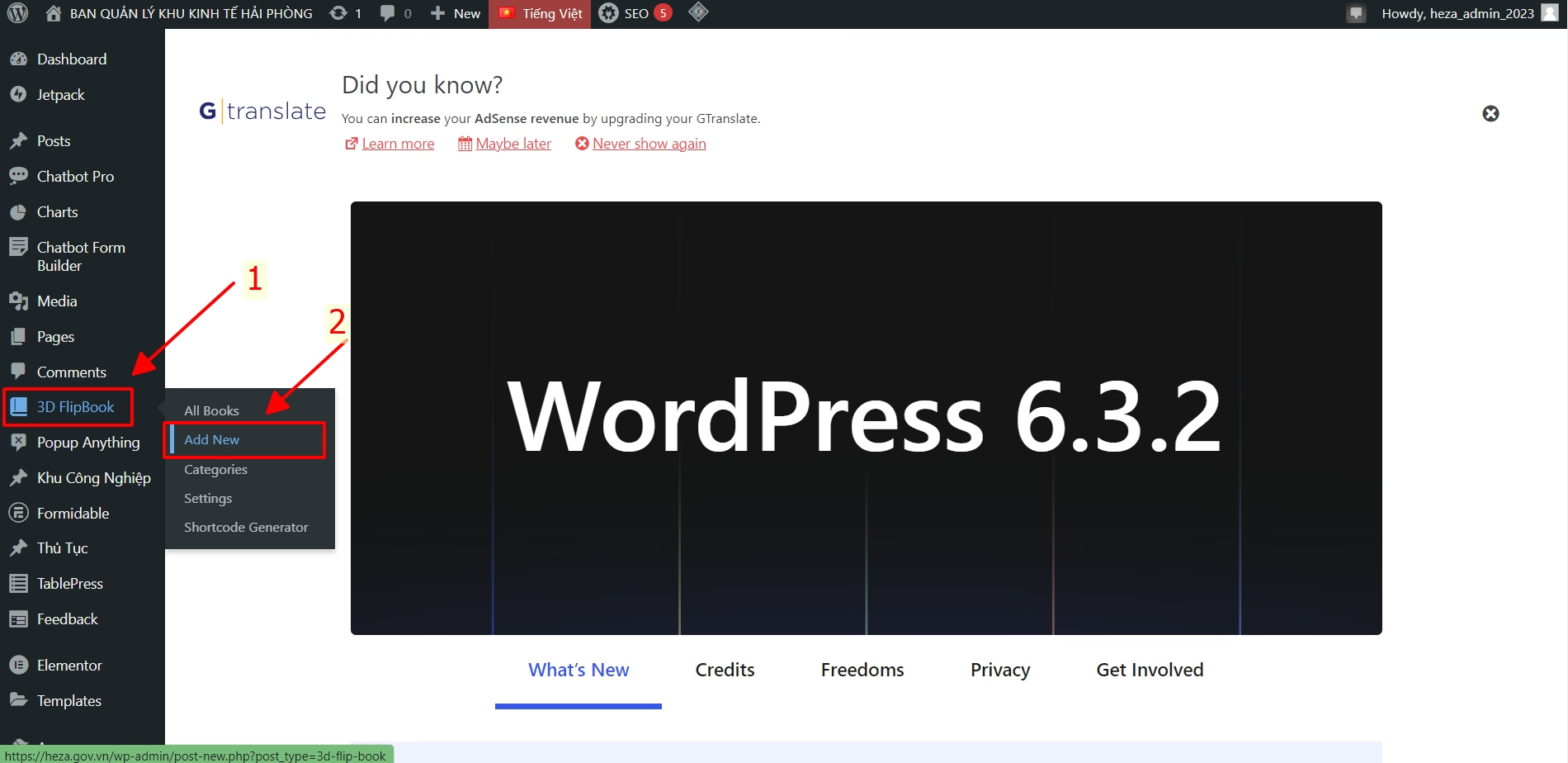
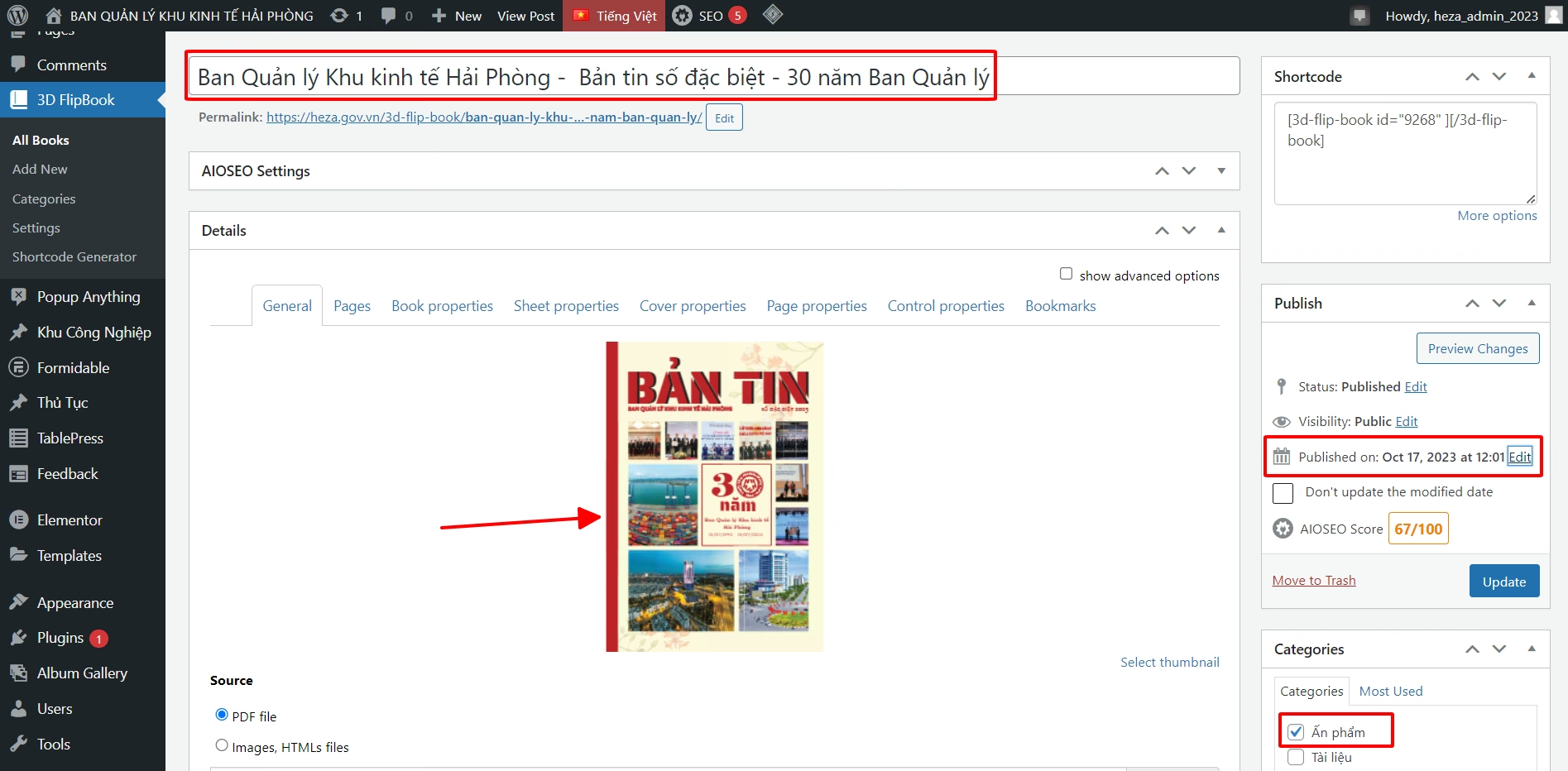
Step 2 : The interface appears as follows; complete all fields
- (1) Enter the title
- (2) Upload the publication PDF
- (3) Set the issue date
- (4) Enter the category
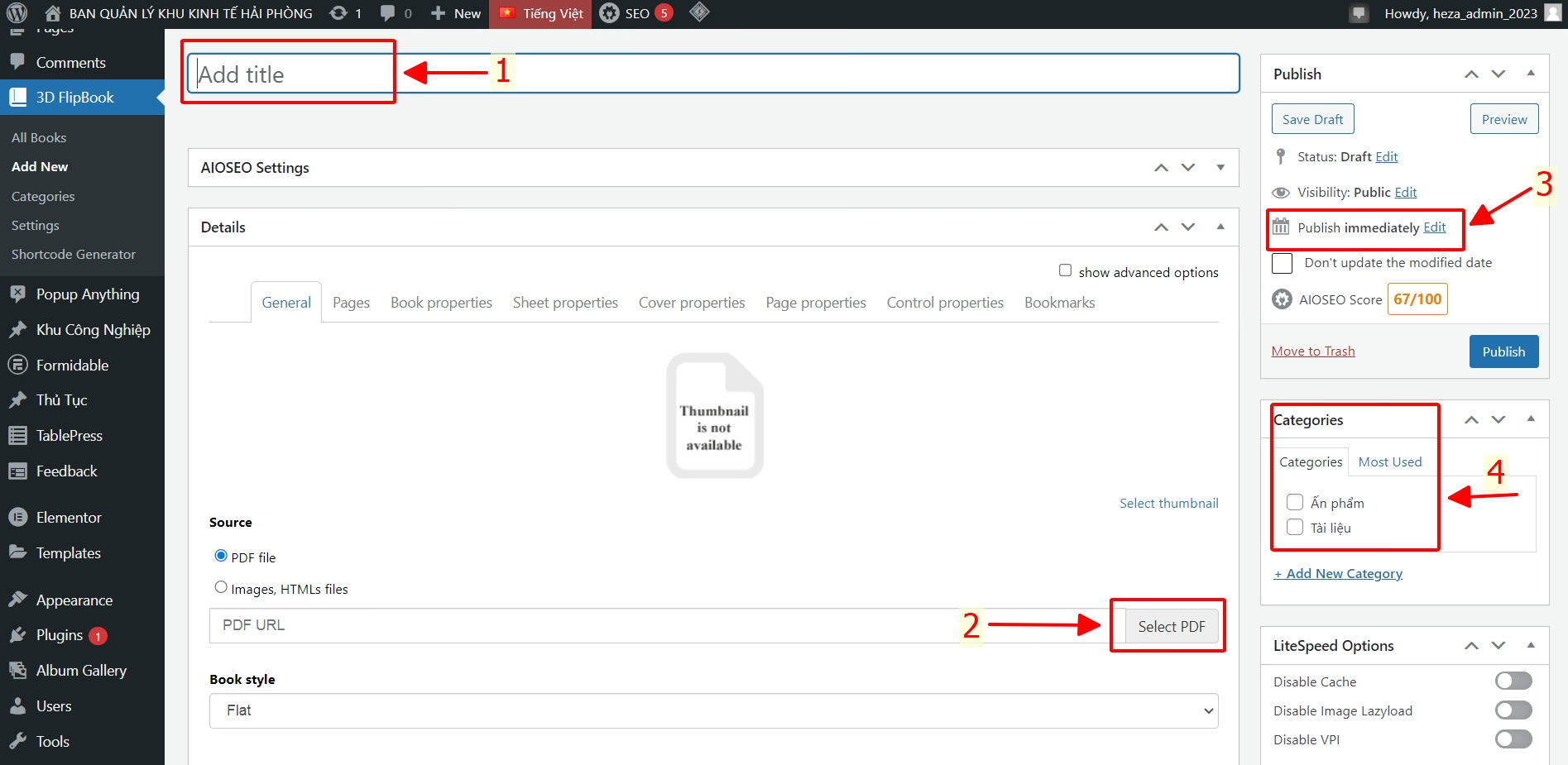
After all fields are completed, the information appears as follows:
Step 3 : Upload the publication
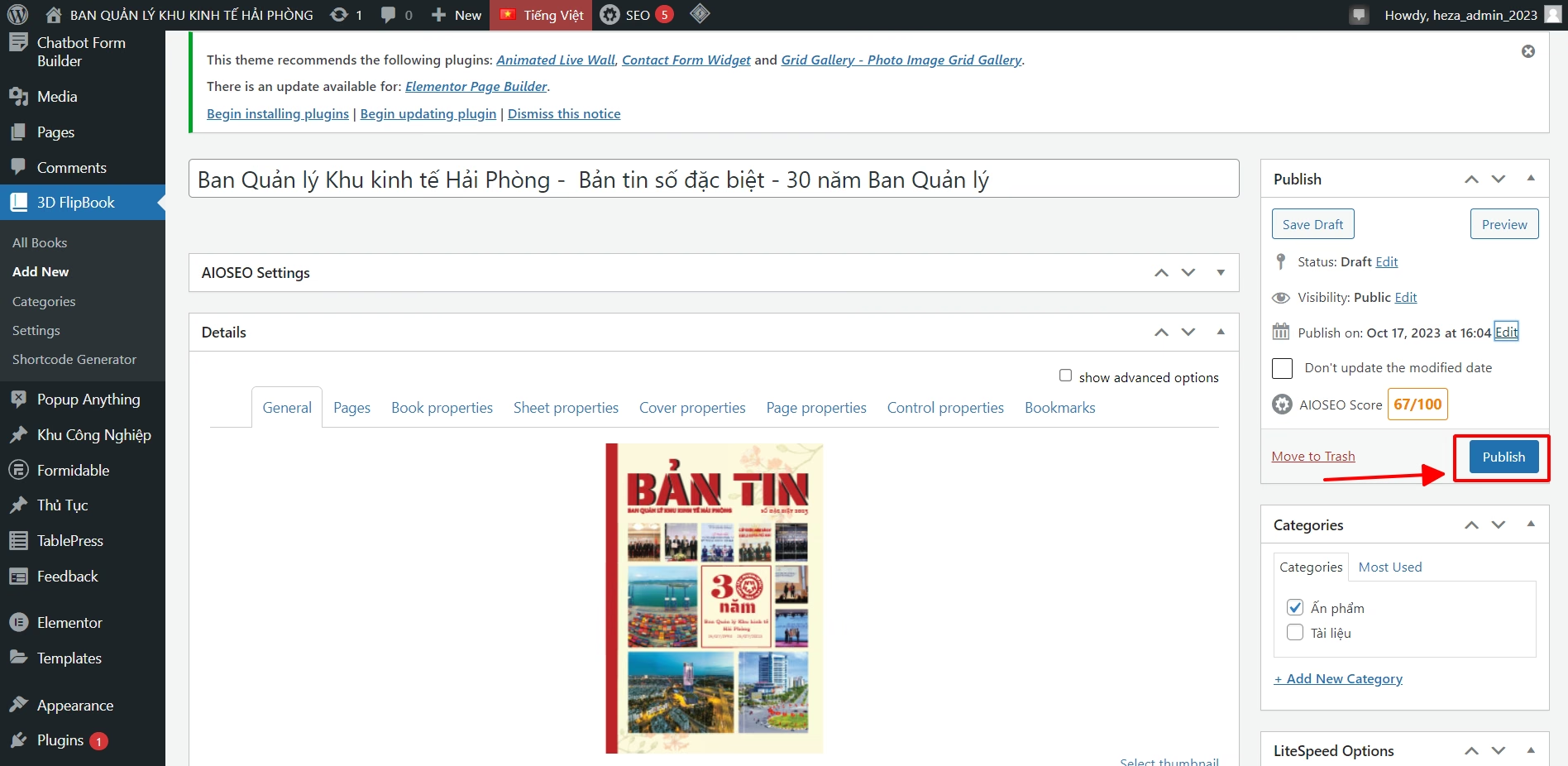
Step 4 : Check whether the publication has been updated on the Publications page yet